

Downloads
What's new in 1.0.1
The print options window now closes after you click Print (it stayed open behind the new tab, also in Microsoft Teams). No other changes.
Already installed? New versions appear in FreeScout under Manage → Modules with an Update button; no download needed. First installation: see Installation below.
What MFS Print does
MFS Print lets an agent print a FreeScout conversation without the parts a customer, a colleague or an auditor should not see. This manual covers version 1.0.1.
| Leave out | What disappears from the printout |
|---|---|
| Internal notes | Every internal note in the conversation |
| History | Status changes, assignments and other activity lines |
| Translations | Automatic translations shown by FreeScout's Ticket Translator module (only offered when that module is active) |
The agent chooses each time they print. The printout itself is FreeScout's own print view, with the chosen parts removed on the server. The printout does not mention what was left out, so you can give it to a customer as it is.
MFS Print is made by Managed FreeScout (StackPros B.V.). It runs entirely inside your own FreeScout; your conversations never leave your server.
Requirements
You need a self-hosted FreeScout, access to its files, and an MFS Print licence.
- FreeScout: version 1.8.236 or newer (tested with 1.8.243 and 1.8.245).
- File access: FTP, SFTP or your hosting panel's file manager, to place the module in FreeScout's
Modules/folder once. - Admin account in FreeScout, to activate the module and the licence.
- Licence: €6 per year (excl. VAT) for one FreeScout installation, all agents included. Buy it on managedfreescout.com/mfsprint.
- Internet access from the server to our licence server, for the licence check. Only the licence key and your FreeScout's domain are sent.
- Optional: FreeScout's Ticket Translator module, if you want to leave translations out.
Installation
Installing takes about five minutes: place the folder, activate the module, then activate your licence.
- Download
mfsprint.zipfrom the latest release. - Extract it into your FreeScout installation's
Modules/folder, using FTP, SFTP or your hosting panel's file manager. The files must end up inModules/MFSPrint/, not in a nestedModules/MFSPrint/MFSPrint/. - In FreeScout, go to Manage → Modules, find MFS Print and click Activate.
- Activate your licence, as described in the next section. Until then, Print works as in standard FreeScout.
FreeScout's Install button on the Modules page only works for modules from the official FreeScout store. MFS Print is installed by extracting the zip, as above.
Licence
MFS Print switches on the moment your licence is active. Without an active licence, the Print menu item works as in standard FreeScout.
Activate
- Find your licence key in the confirmation email you received after your purchase. That email also explains how to manage your subscription and licence keys.
- In FreeScout, go to Manage → Settings → MFS Print.
- Paste the key and click Activate licence.
The settings page then shows the status, the date your subscription is paid until, and when the licence was last checked.
How the check works
- FreeScout re-checks the licence every 6 hours. Only the key and your FreeScout's domain are sent.
- If the licence server cannot be reached, nothing changes. After 14 days without a successful check, MFS Print switches off until the next successful check.
- When your subscription ends or is not renewed, MFS Print switches off. Renew as described in your confirmation email and it comes back on the next check.
Moving to another FreeScout installation
One licence works on one installation. Click Deactivate licence on the old installation first, then activate the key on the new one.
Printing a conversation
Open the conversation, choose what to leave out, and print. FreeScout opens the printout in a new tab with your browser's print dialog. In Microsoft Teams (with MFS Connect 1.9.2 or newer) the printout opens in a browser tab; sign in to FreeScout there if asked.
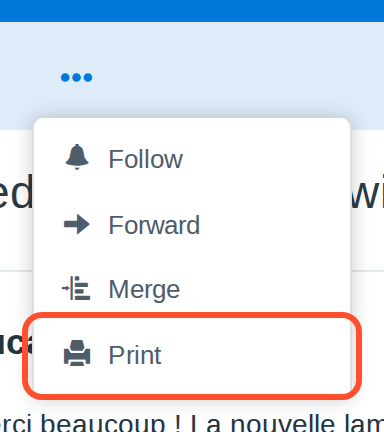
- In the conversation, open the … menu at the top and click Print.
- Tick what to leave out of the printout and click Print. The boxes start as set by your administrator (see Print defaults); you can change them each time.

- The printout opens with the parts you ticked left out; nothing on it says that anything was removed.
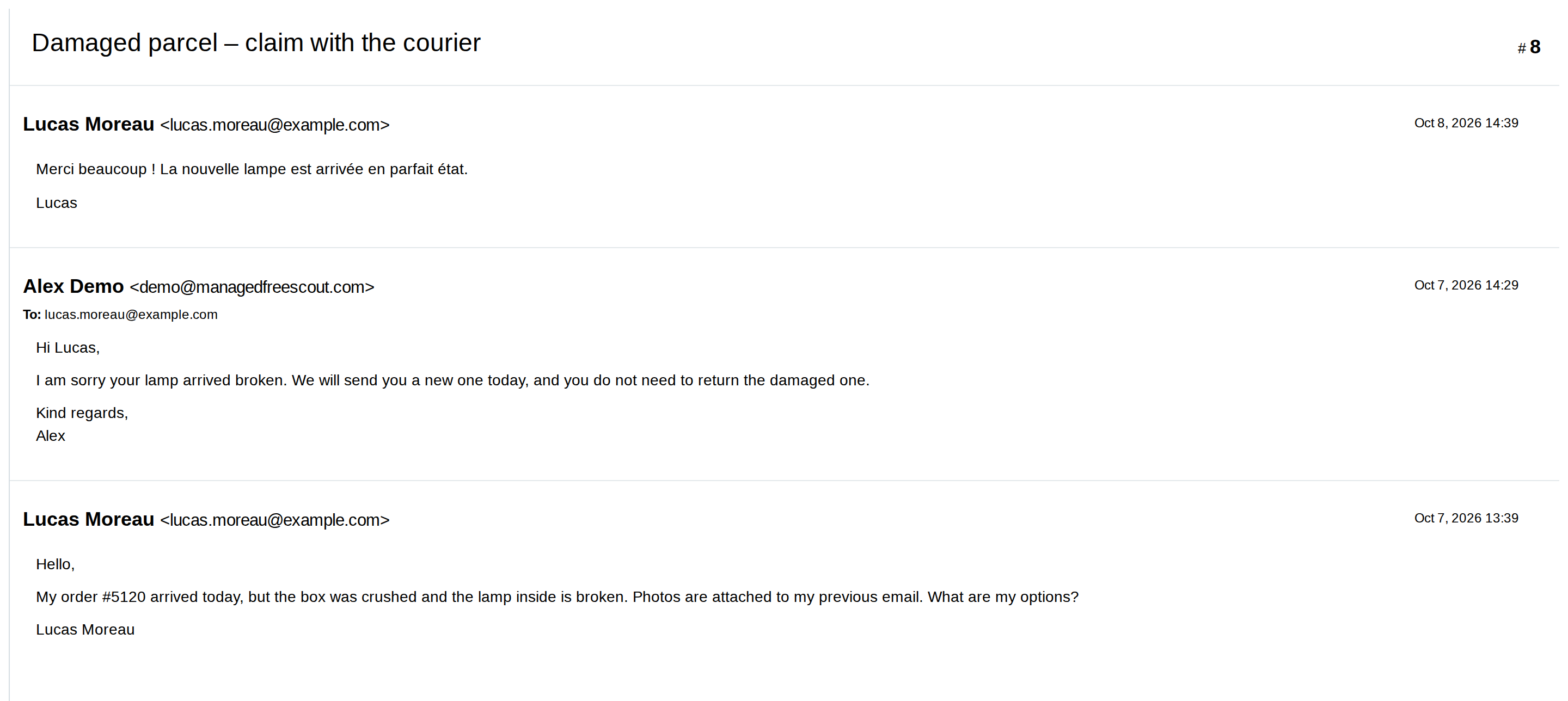
With nothing ticked, you get FreeScout's normal printout, including notes and history:

Translations appear as a third option only when FreeScout's Ticket Translator module is active. Leaving them out hides the automatic translations; the original messages stay.
MFS Print only changes what is printed. Nothing in the conversation itself is changed or deleted.
Print defaults
An administrator can decide which boxes are already ticked when an agent opens the print options, for example to leave out internal notes by default.
- Go to Manage → Settings → MFS Print.
- Under Print defaults, tick what should be left out by default and click Save.
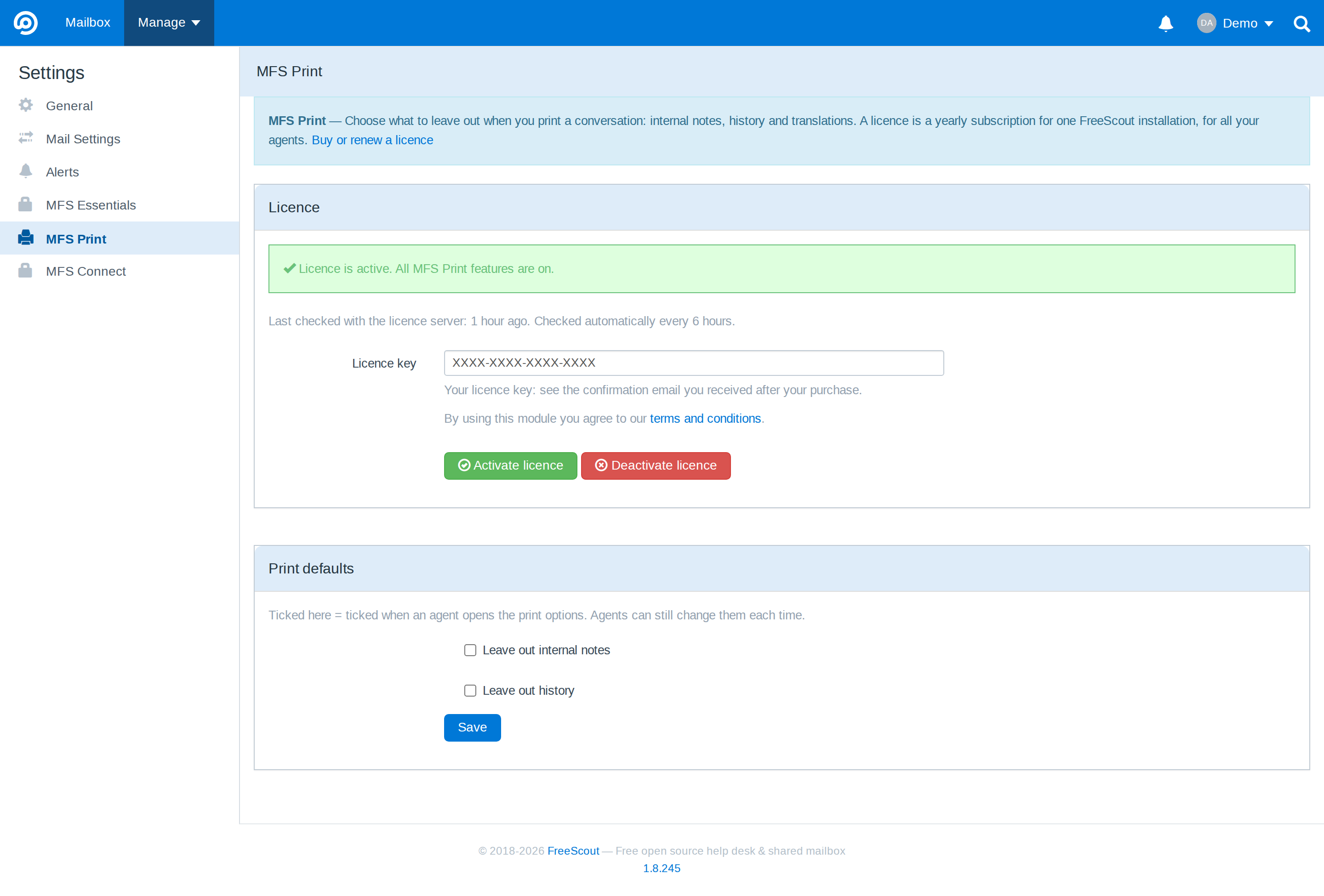
Agents can still change the boxes each time they print. Print defaults appear once the licence is active; the translations default only when Ticket Translator is active.
Updating, removing and troubleshooting
New versions appear in FreeScout under Manage → Modules with an Update now button; your settings and licence stay.
Removing: deactivate MFS Print under Manage → Modules, then click Delete. Print works as in standard FreeScout again. Deactivate the licence first if you want to use it on another installation.
| What you see | What to do |
|---|---|
| Print opens FreeScout's normal printout, without the options window | The licence is not active. Check Manage → Settings → MFS Print. |
| "Licence key not found" | Check the key in your confirmation email, and that it is a key for MFS Print. |
| "Already in use on another FreeScout installation" | Click Deactivate licence on the other installation first, or buy another licence. |
| "Could not reach the licence server" | Your server cannot reach our licence server. Your hosting provider can open outgoing HTTPS; we can give you the exact address if they need it. |
| The Translations option is missing | It only appears when FreeScout's Ticket Translator module is active. |
| The print dialog does not open | Your browser blocked the new tab. Allow pop-ups for your FreeScout address. |
Still stuck? Email support@managedfreescout.com.
Version history
| Version | Date | Changes |
|---|---|---|
| 1.0.1 | 9 Oct 2026 | The print options window closes after Print. With MFS Connect 1.9.2, Print in Microsoft Teams opens the printout in a browser tab. |
| 1.0.0 | 9 Oct 2026 | First release of MFS Print: leave out internal notes, history and translations when printing; print defaults. Replaces the earlier Advanced Print module. |