

FreeScout module · MFS Essentials
The everyday essentials FreeScout was missing
Work through your queue in split view, keep the toolbar in sight while you scroll, filter and sort the ticket list your way and write richer replies. Plus: keep internal emails away from your clients and react to a colleague's note in one click. One small module, nine upgrades your team will notice on day one.
Nine upgrades your team will use every day
MFS Essentials plugs straight into FreeScout. No new screens to learn: install it and the features appear where your agents already work. Everything is on from the start; an admin can switch off what the team does not need.
Convert to note
Hide a forwarded (internal) email from your client in two clicks. Reverse a converted note back in an email.

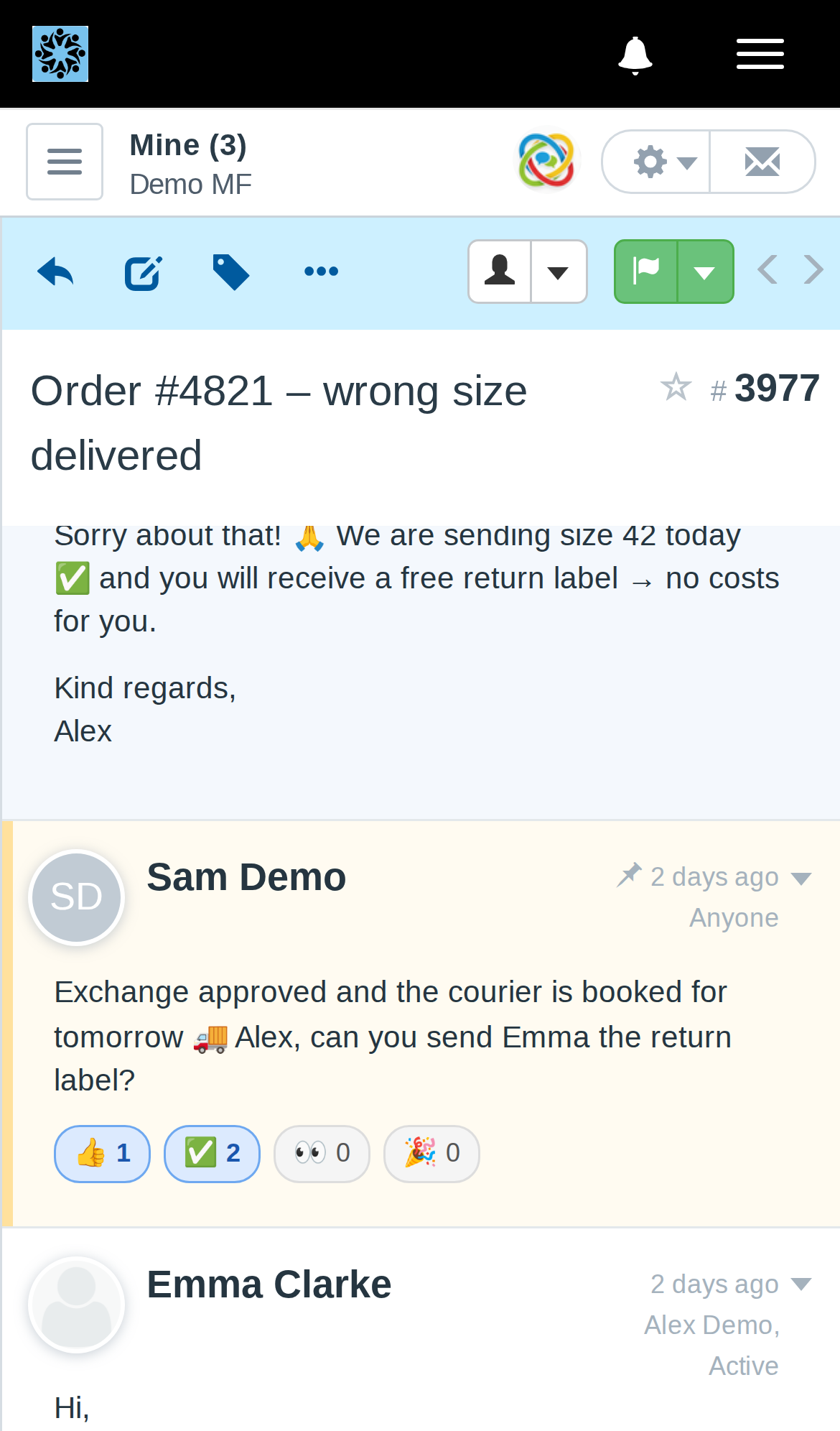
Note reactions
Acknowledge a colleague's note without writing another one. Slack-style.

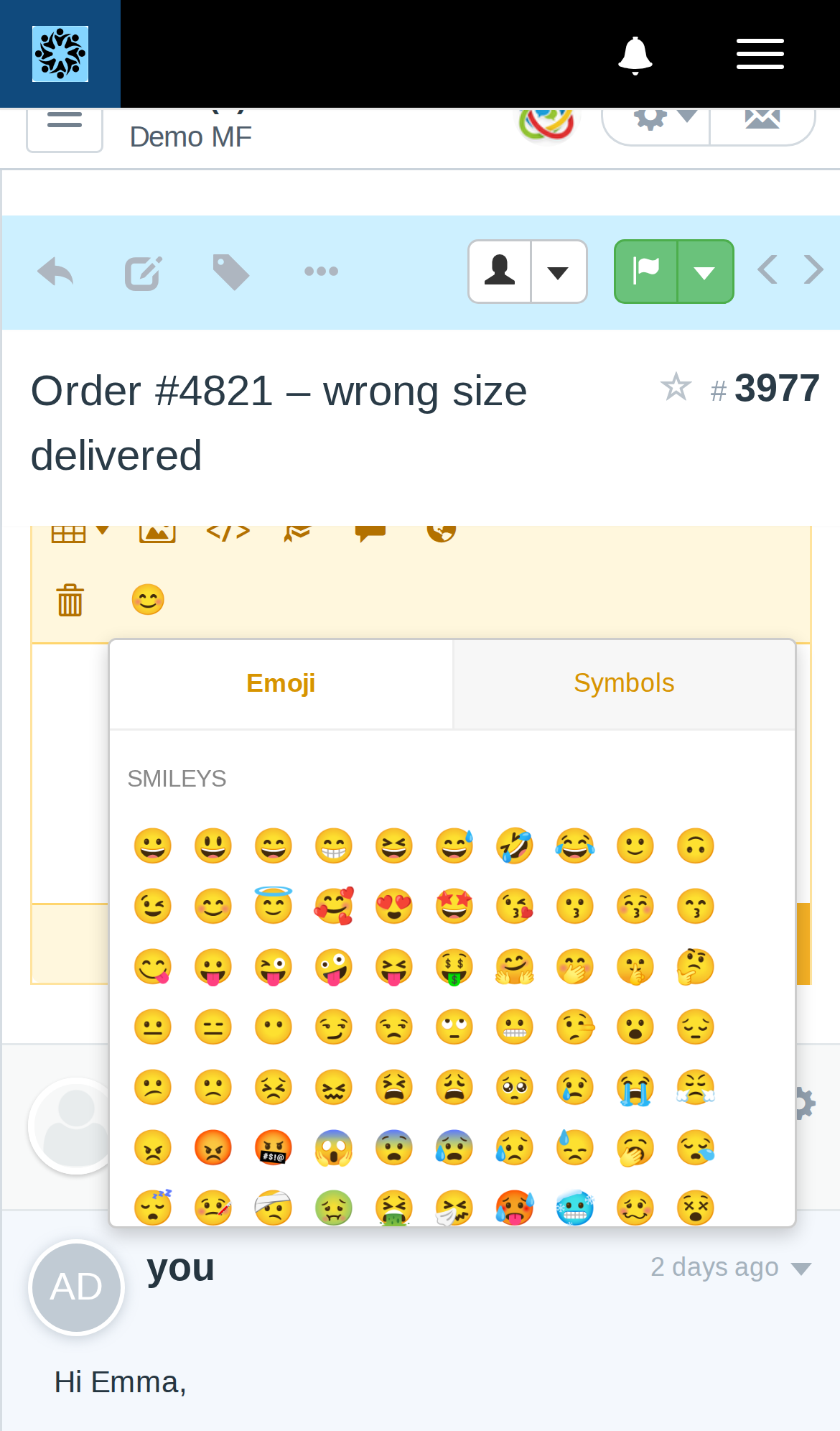
Emoji & symbols
Emojis and symbols like € £ ¥, arrows and dashes, right in the editor.

Code that wraps
Long log lines and code stay readable, no sideways scrolling.

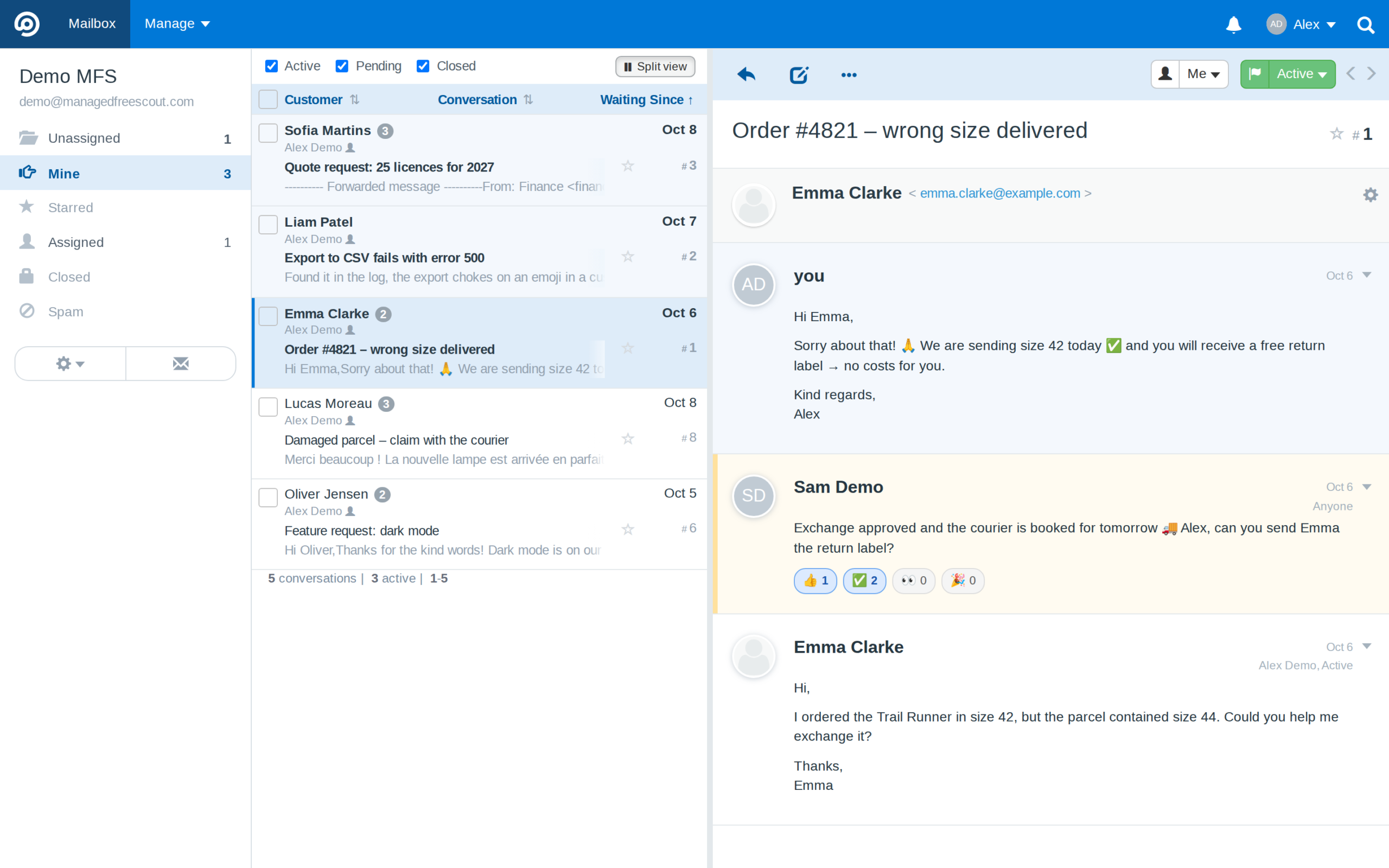
Split view
The ticket list on the left, the conversation on the right.

Fixed panels
Menu, toolbar and title stay in view while you scroll.
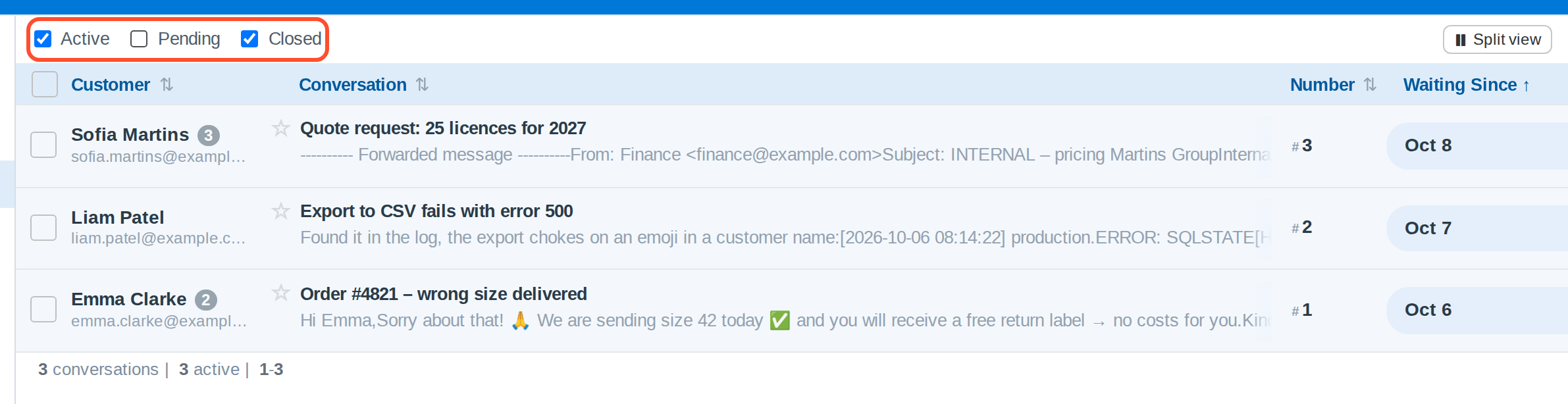
Status filters
Show only Active, Pending or Closed conversations.

Sort & resize
Sort by Customer or Assigned To, drag columns to size.

Editor extras
Sub-lists, strikethrough, alignment, undo, fullscreen.

Productivity
Work through your queue in split view
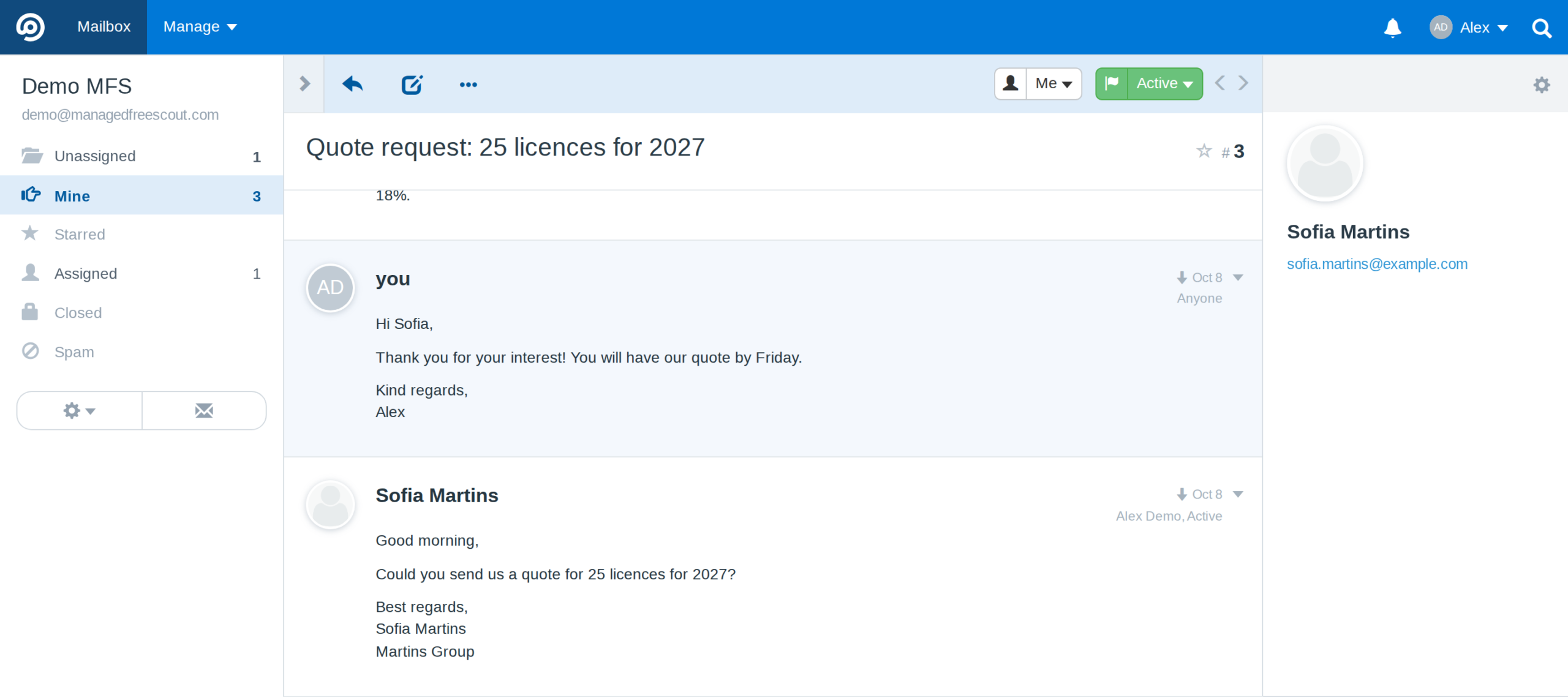
Click Split view above the ticket list and every conversation opens on the right, while the list stays on the left. Like your email program: no more back and forth.
- ✓Reply, add notes, assign and close right in the pane
- ✓The list refreshes after you reply or close
- ✓Drag the divider to make the list wider or narrower
- ✓Ctrl+click still opens a conversation in a new tab (when working in a browser)
- ✓Each agent their personal view
Focus
Your ticket list, your filter and sort preferences
Untick Pending or Closed above the list and see only what needs an answer now. Sort by Customer or Assigned To, and drag the column borders to the width you like.
- ✓Active, Pending and Closed checkboxes in every folder
- ✓Sort by Customer and Assigned To, A to Z or Z to A
- ✓Drag a column border to resize it; double-click to reset
- ✓Remembered per agent, on every computer
Navigation
The toolbar stays where you need it
Scroll down a long conversation and the toolbar and title stay at the top, with Reply, Note, Assign and Status one click away. The folder list and the customer panel stay in view too.
- ✓No more scrolling back up to reply
- ✓Menu, folders and list header stay in place
- ✓The customer panel stays in view
- ✓Phones and small screens scroll as usual
Writing
An editor that has grown up
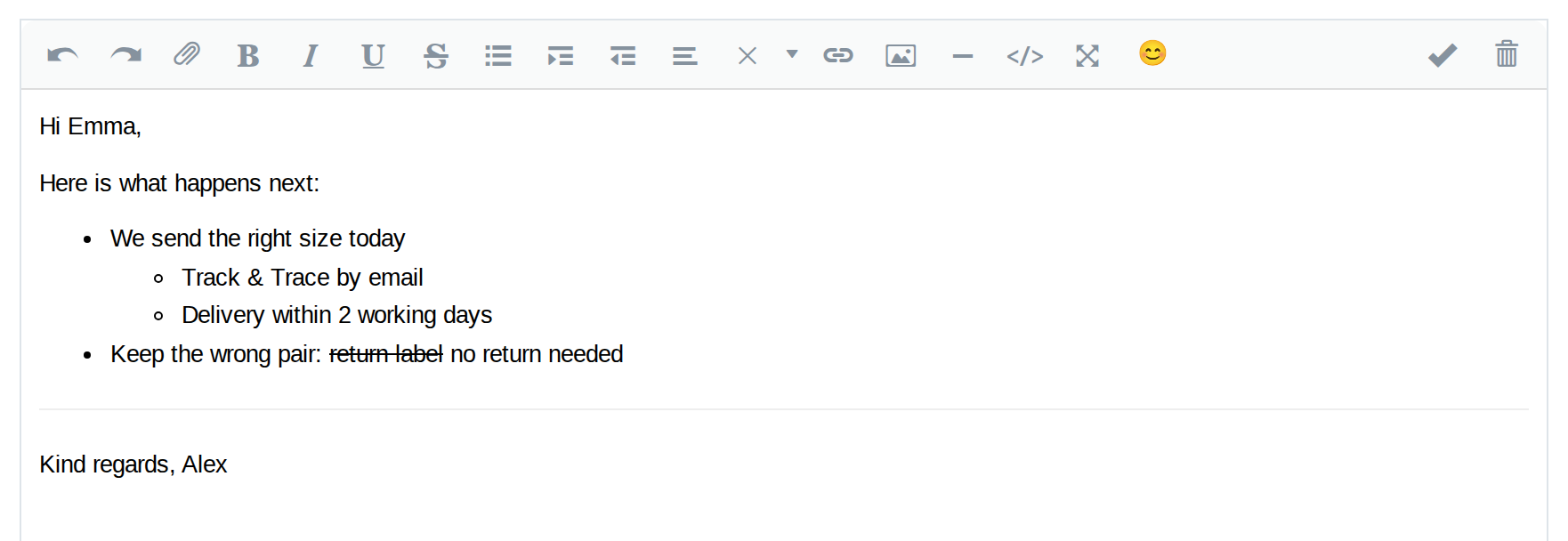
FreeScout's reply editor leaves out the buttons you miss most. MFS Essentials adds them, in replies and in internal notes.
- ✓Tab and Shift+Tab for sub-lists, like in Gmail and Google Docs
- ✓Indent and outdent, strikethrough, alignment
- ✓Undo and redo, a horizontal line
- ✓Fullscreen for long replies
Privacy
Keep internal emails away from your clients
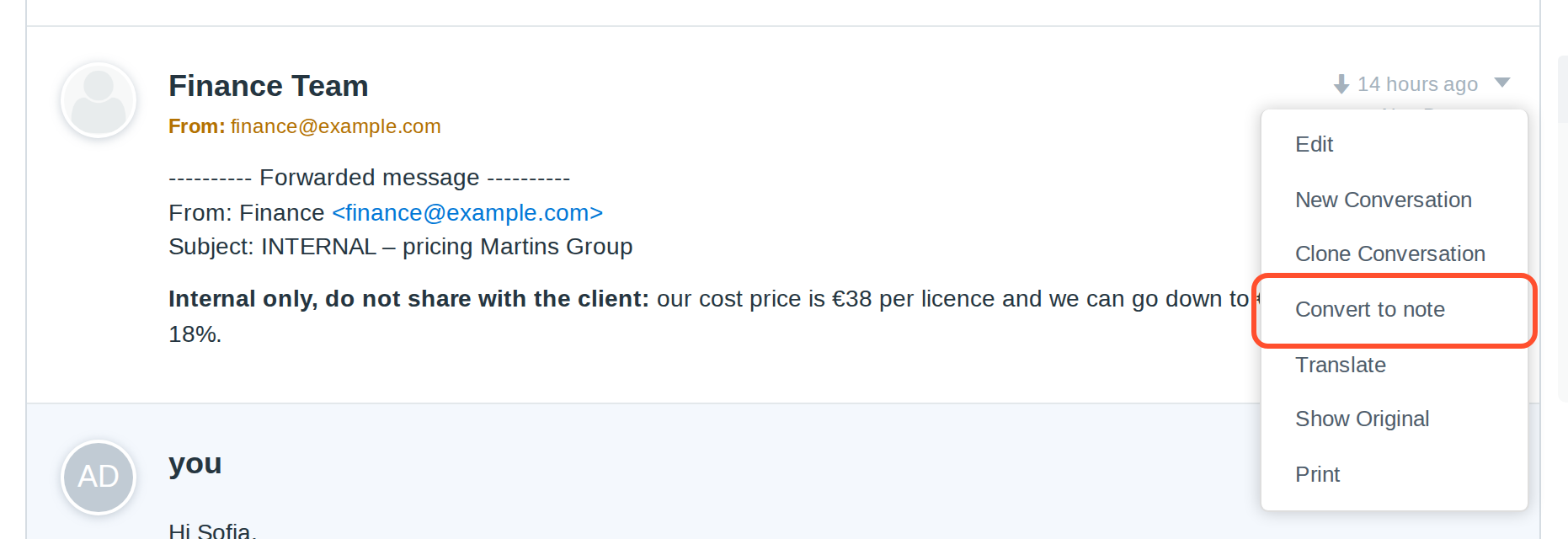
It happens in every team: a colleague forwards an internal email into a ticket, and suddenly prices, margins or remarks about the client sit in the conversation. From there they end up in the quoted history of your next reply and in the customer portal.
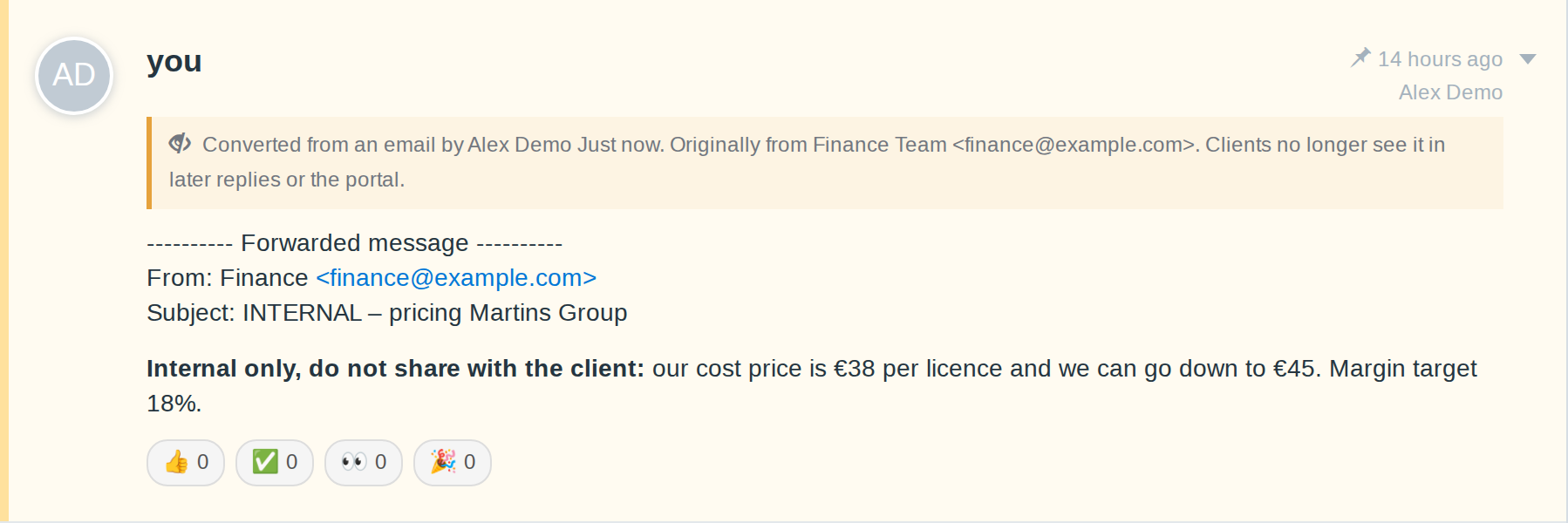
With Convert to note you turn that single email into an internal note. Your client no longer sees it anywhere, while your team keeps the full context.
- ✓Hidden from the history in later replies and from the customer portal
- ✓Text, attachments and position in the conversation stay intact
- ✓A banner shows who converted it and who originally sent it
- ✓Changed your mind? Convert back to email restores it exactly
- ✓Any agent with access to the mailbox can use it


Teamwork
React to notes, Slack-style
Internal notes are where your team coordinates. Now everyone can acknowledge them the way they already do in Slack or Teams: with a quick 👍 ✅ 👀 or 🎉.
- ✓One click to react, one click to undo
- ✓Hover a reaction to see who reacted
- ✓Only on internal notes, never on anything your client receives
- ✓Fewer “ok, thanks!” notes cluttering the conversation
Writing
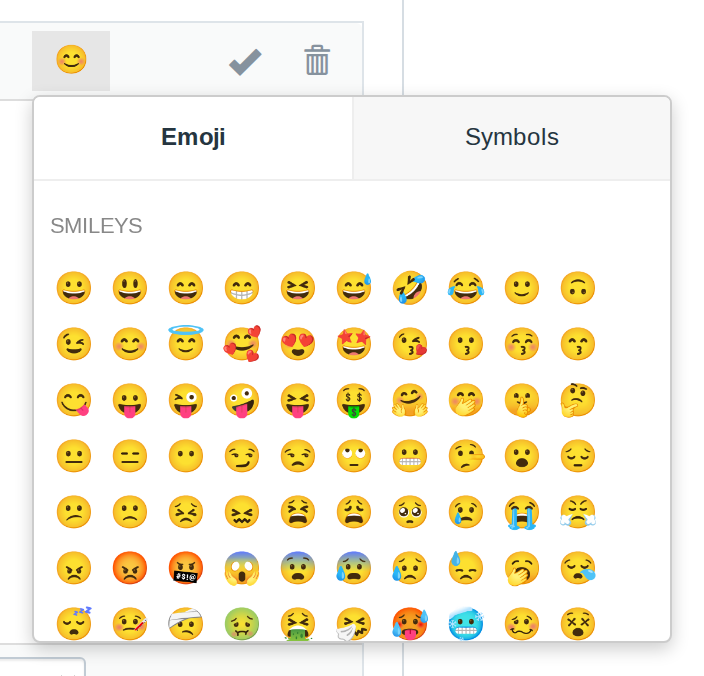
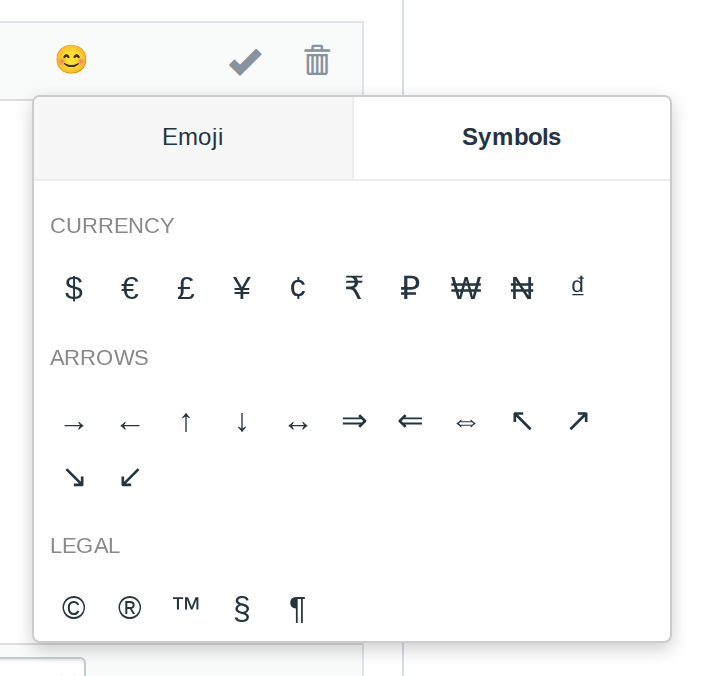
Emoji and special characters, one click away
A friendly 🙏 in a reply, a € sign in a quote, an arrow or a proper dash in instructions: MFS Essentials adds a picker to the toolbar of both the reply and the note editor.
- ✓Emoji tab with the most useful sets
- ✓Symbols tab: currencies, arrows, maths and typographic characters
- ✓Works the same in replies and internal notes
- ✓Inserts at your cursor, no copy-pasting from other sites
Without MFS Essentials
With MFS Essentials
Readability
Code blocks that fit the screen
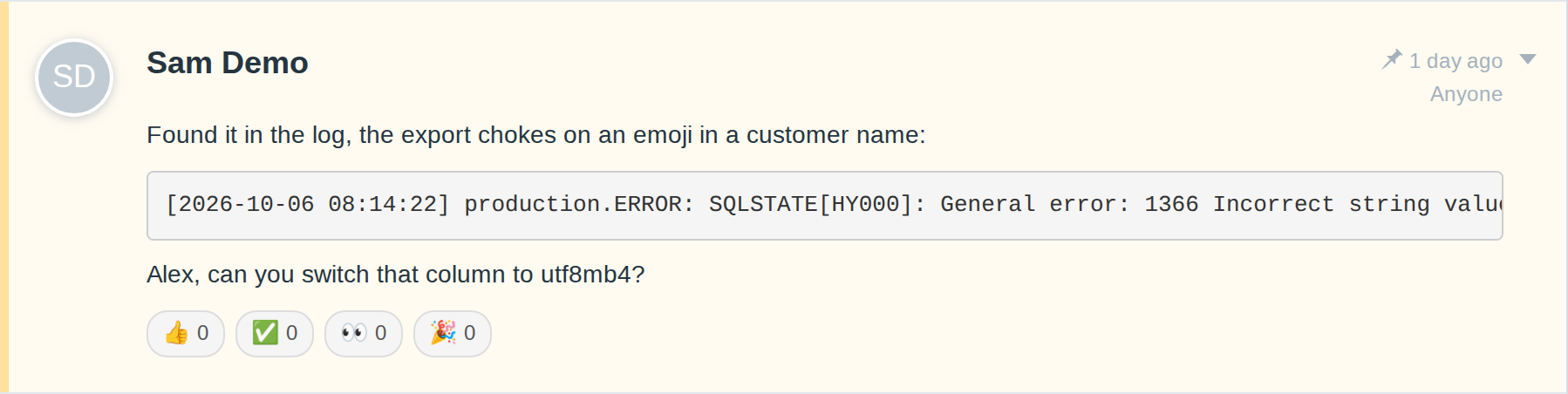
Paste a log line or a snippet with FreeScout's “Code” style and long lines simply run off the edge, forcing a horizontal scrollbar. It's a known FreeScout issue that hasn't been fixed yet.
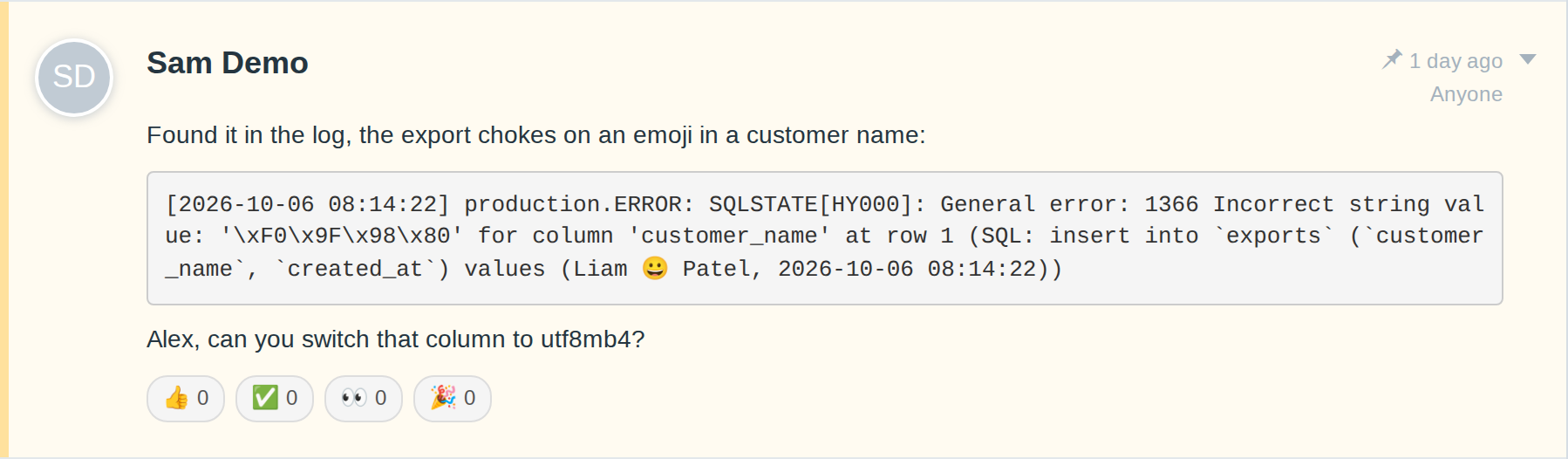
MFS Essentials makes code blocks wrap neatly, in the editor and in the conversation, while keeping the monospace look.
- ✓Long lines wrap instead of scrolling sideways
- ✓Fixed in the editor and in the conversation view
- ✓Nothing to configure
control
Admins take control
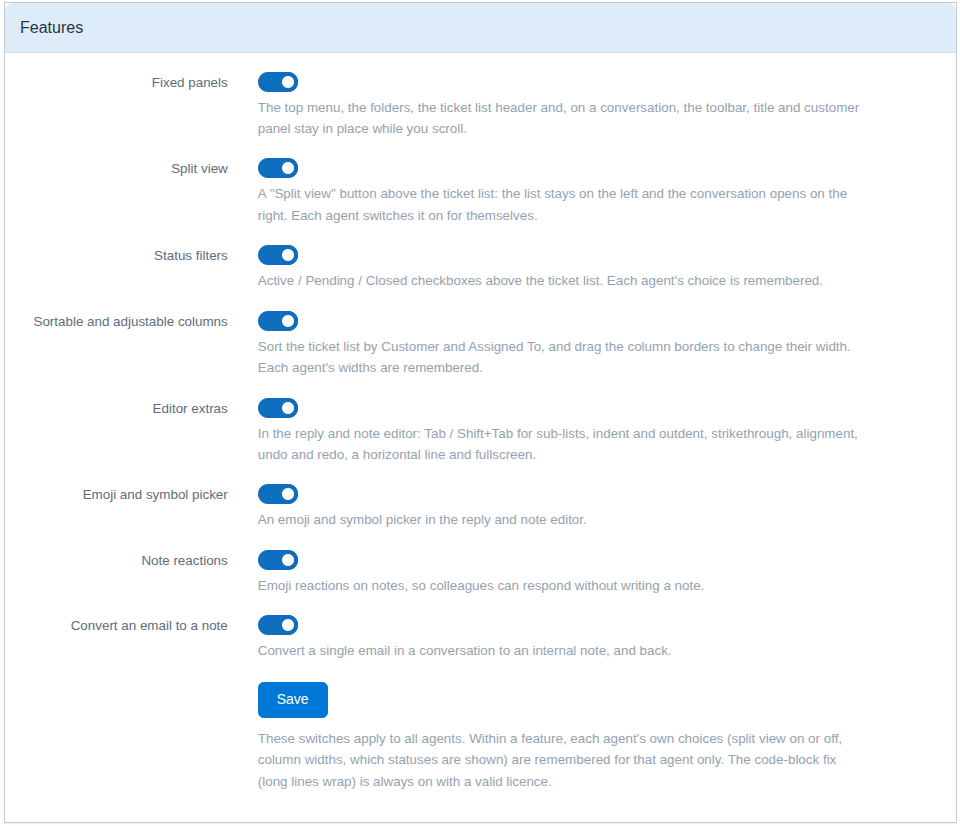
Every feature has its own switch under Manage → Settings → MFS Essentials. Everything is on after installation: switch off what your team does not need.
- ✓The switches apply to all agents
- ✓Each agent's own choices (split view, column widths, statuses) are remembered for that agent
- ✓Included in the same licence, no extra cost
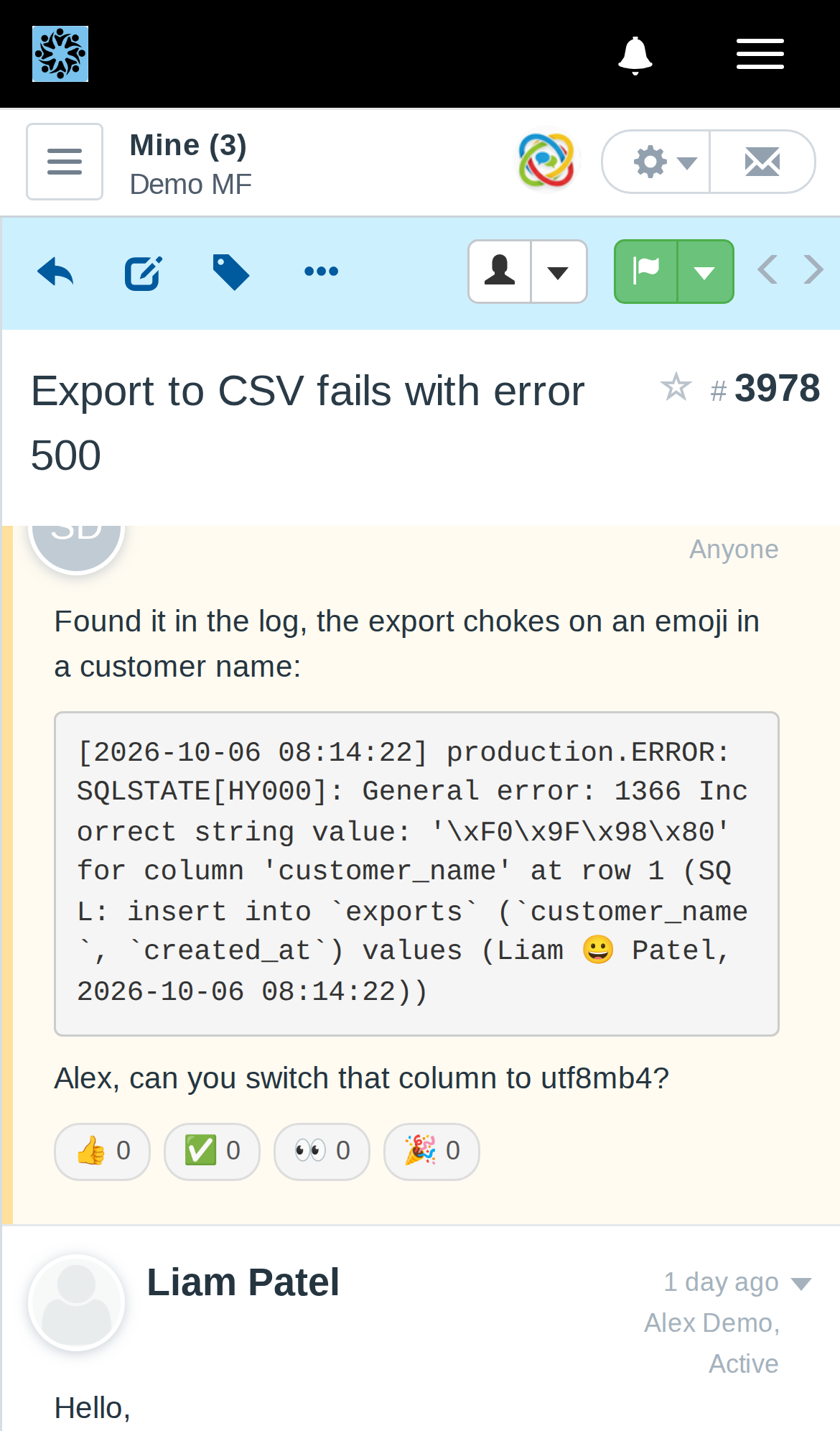
Just as good on your phone
Reactions, emoji, code blocks and Convert to note work in FreeScout's mobile view too, so your team can react, write and convert on the go. Split view and fixed panels are made for desktop screens.
One simple price.
One yearly price per FreeScout installation. No per-agent fees.
MFS Essentials
€9
per year
- ✓All nine features, each with its own on/off switch
- ✓For one FreeScout installation, all your agents
- ✓Updates through FreeScout's own “Update now” button
- ✓Billed yearly, no per-agent fees
Works with FreeScout 1.8 (tested on 1.8.248).
Questions
Will my customers / recipients notice anything?
Only in a good way: emails you convert to a note disappear from what they see. Reactions and converted notes are internal, and the emoji or symbols you add are ordinary characters in your reply.
Is a converted email deleted?
No. It stays in the conversation as an internal note with its text and attachments, and you can convert it back to an email at any time. If you do want it gone, you can delete it like any of your own notes.
Does it change how FreeScout works?
No. MFS Essentials only adds to FreeScout's existing screens; there are no new pages to learn. Everything is on after installing. An admin can switch single features off under Manage → Settings → MFS Essentials.
Can each agent set up the ticket list their own way?
Yes. Split view on or off, column widths and which statuses are shown are remembered per agent, on every computer they use.
Where is my data stored?
MFS Essentials runs inside your own FreeScout installation. Your conversations stay on your server.
How do I install and update it?
As usual, nothing new here! Upload the zip that will be sent to you by email after purchase to FreeScout's Modules and activate it under Manage → Modules. New versions show up in FreeScout with an “Update now” button.