

FreeScout module · MFS Connect
Your FreeScout helpdesk, right inside Microsoft Teams
Answer customers without leaving Teams. Your agents open FreeScout as a tab, are signed in automatically with their Microsoft 365 account, and get Teams notifications that open the right conversation. On desktop, in the browser, on their phone, and even in Outlook.
Works with
Microsoft Teams Outlook Microsoft 365
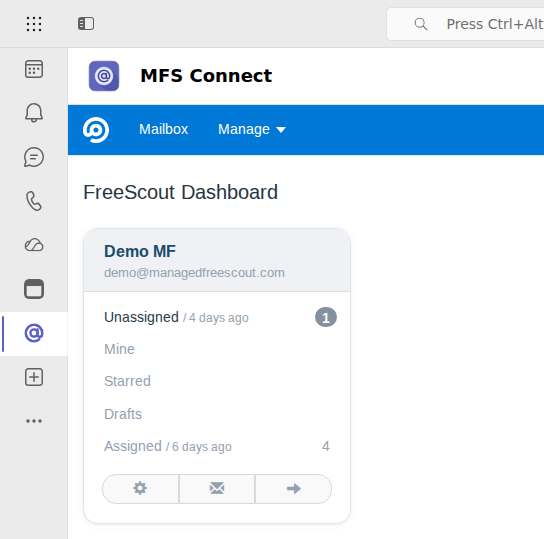
Everything your team needs, where your team already works
Your team lives in Microsoft Teams. With MFS Connect, your shared inboxes live there too, while FreeScout and all your conversations stay on your own server.
One sign-in
Agents use their Microsoft 365 account. No separate FreeScout password.
Teams notifications
A notification in Teams opens the conversation it is about.
Everywhere Teams is
Desktop, browser and phone, plus Outlook and the Microsoft 365 app.
Quick, one-time setup
Install the module, add the Teams app, connect with a code. No Azure registration.
Sign-in
No extra password, ever
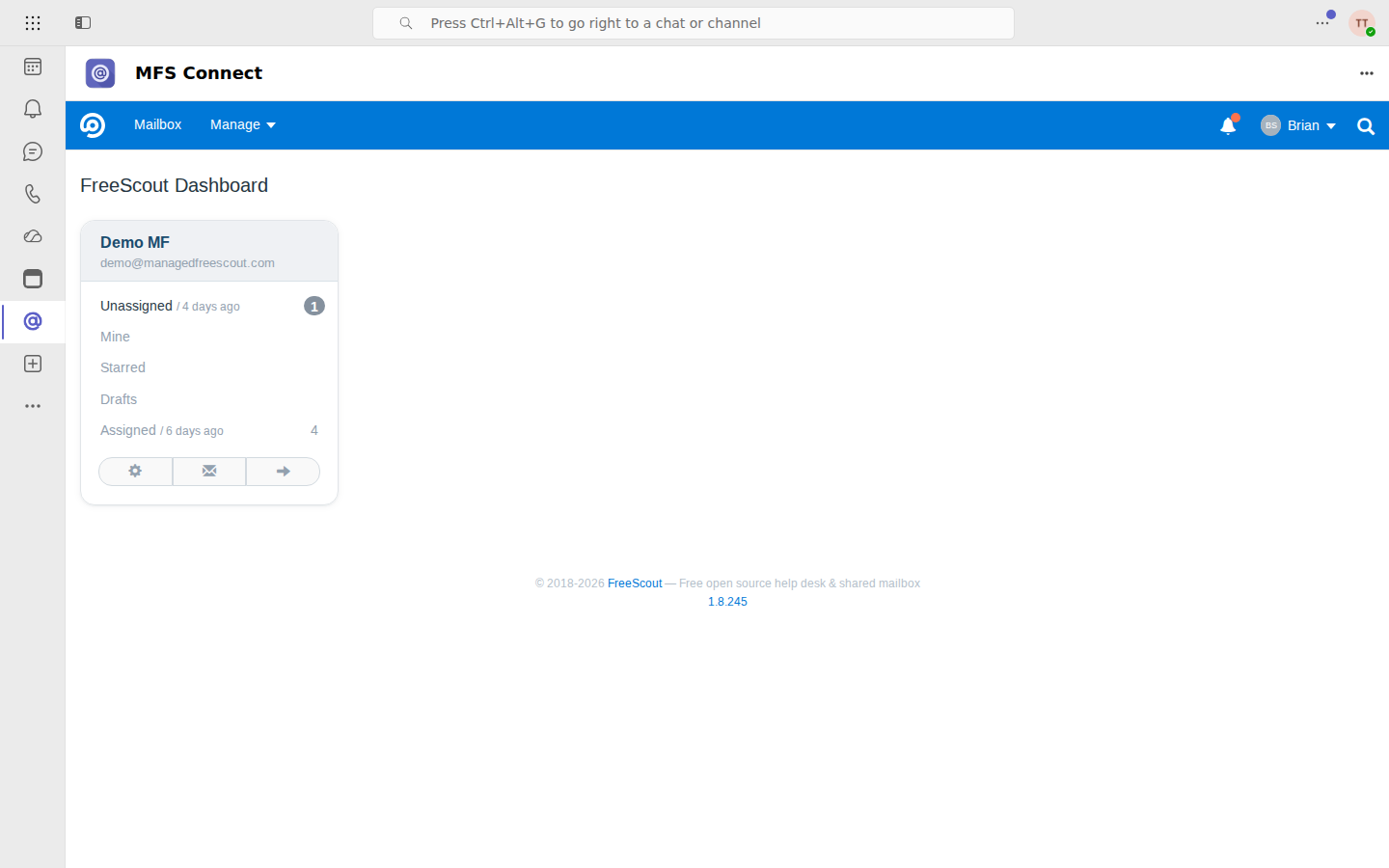
Opening FreeScout in Teams signs the agent in with the Microsoft 365 account they are already using. No login screen, no password to remember or reset.
- ✓Microsoft 365 single sign-on
- ✓Works for every agent with a FreeScout account
- ✓Only for your own Microsoft 365 organisation
Notifications
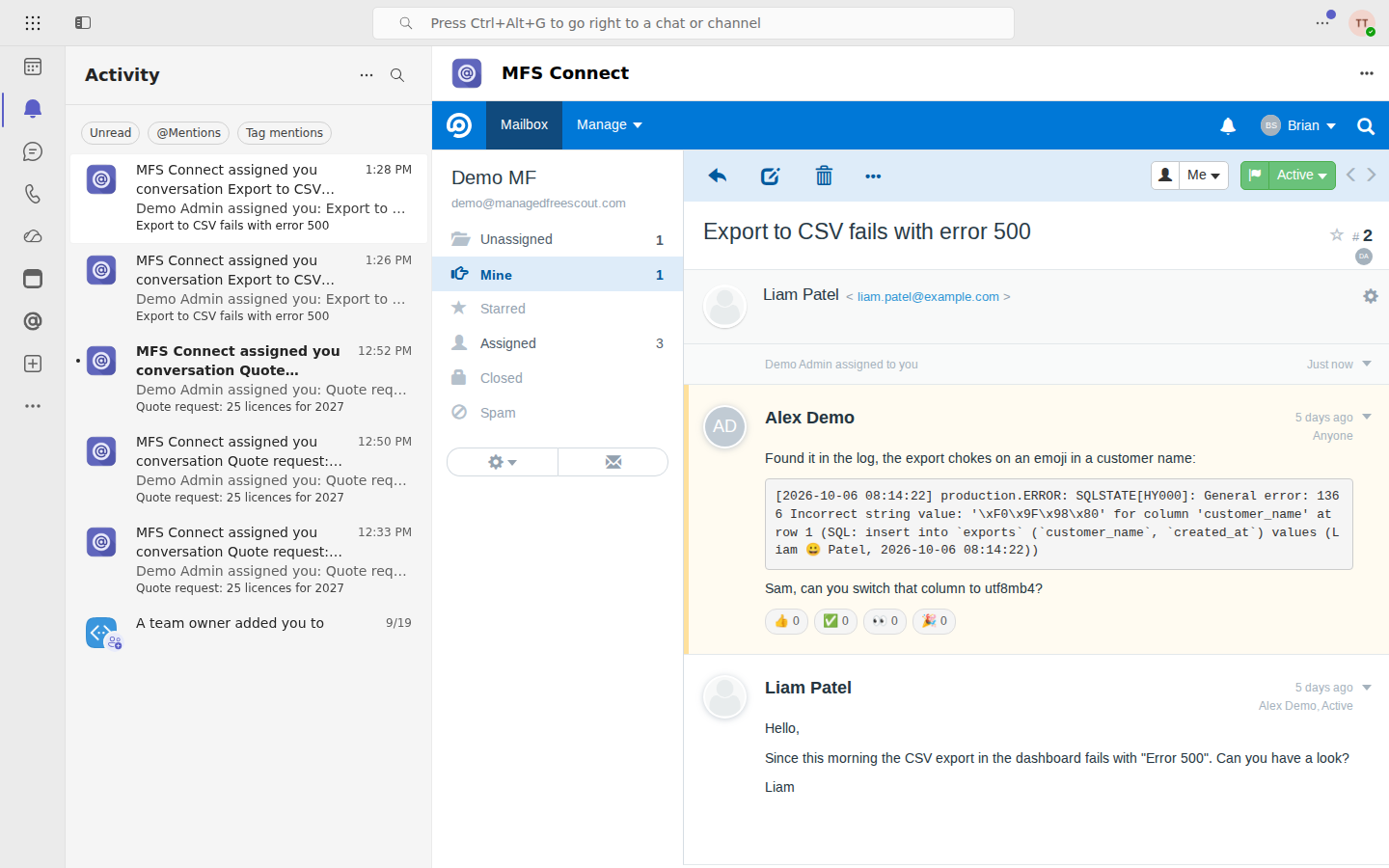
Teams tells you when a customer needs you
New and updated conversations show up as Teams activity notifications. One click opens the conversation in FreeScout, right there in Teams.
- ✓Activity notifications in Teams
- ✓A click opens the exact conversation
- ✓No more switching between apps to check the inbox
Anywhere
On the desktop, in the browser, on the phone
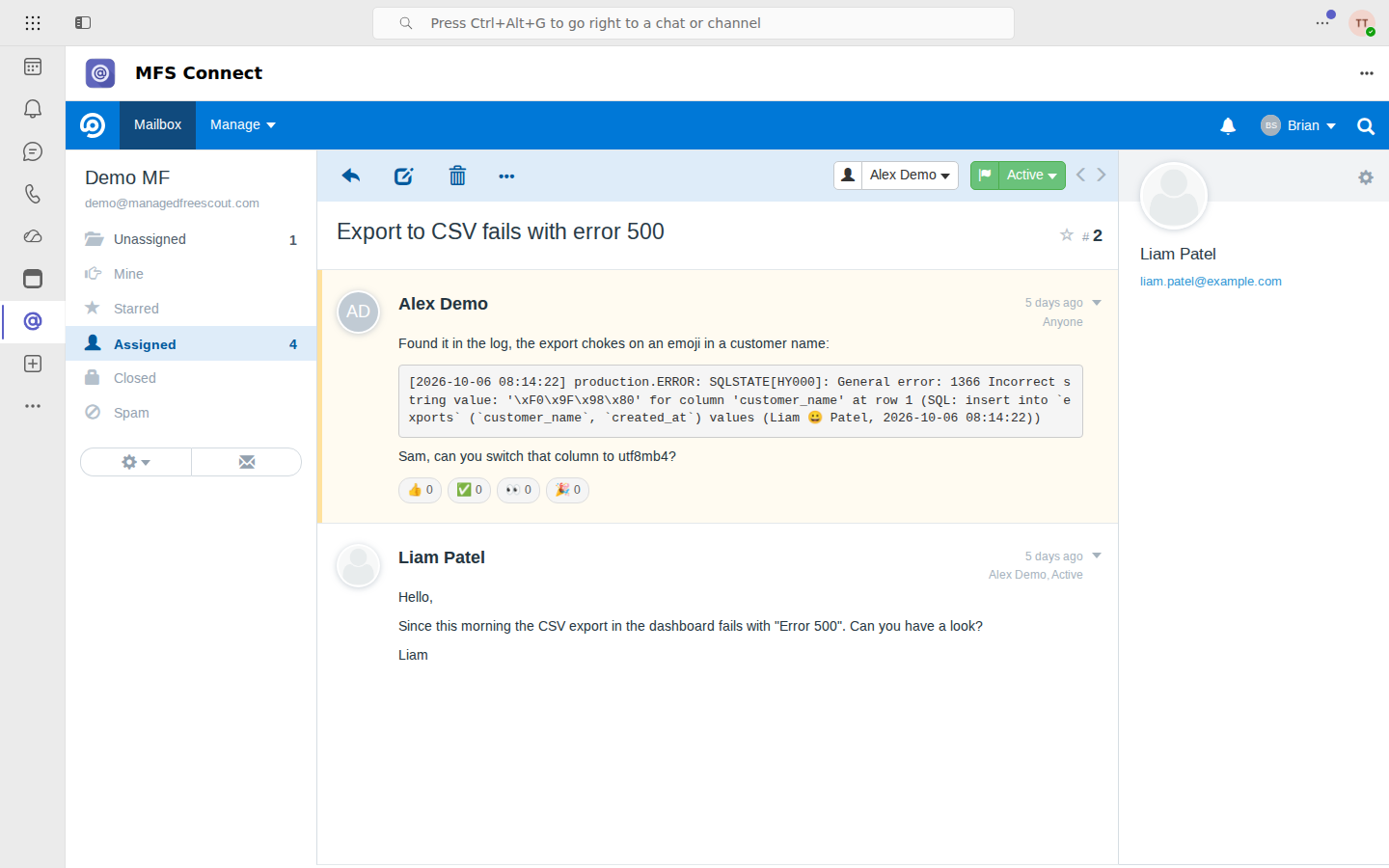
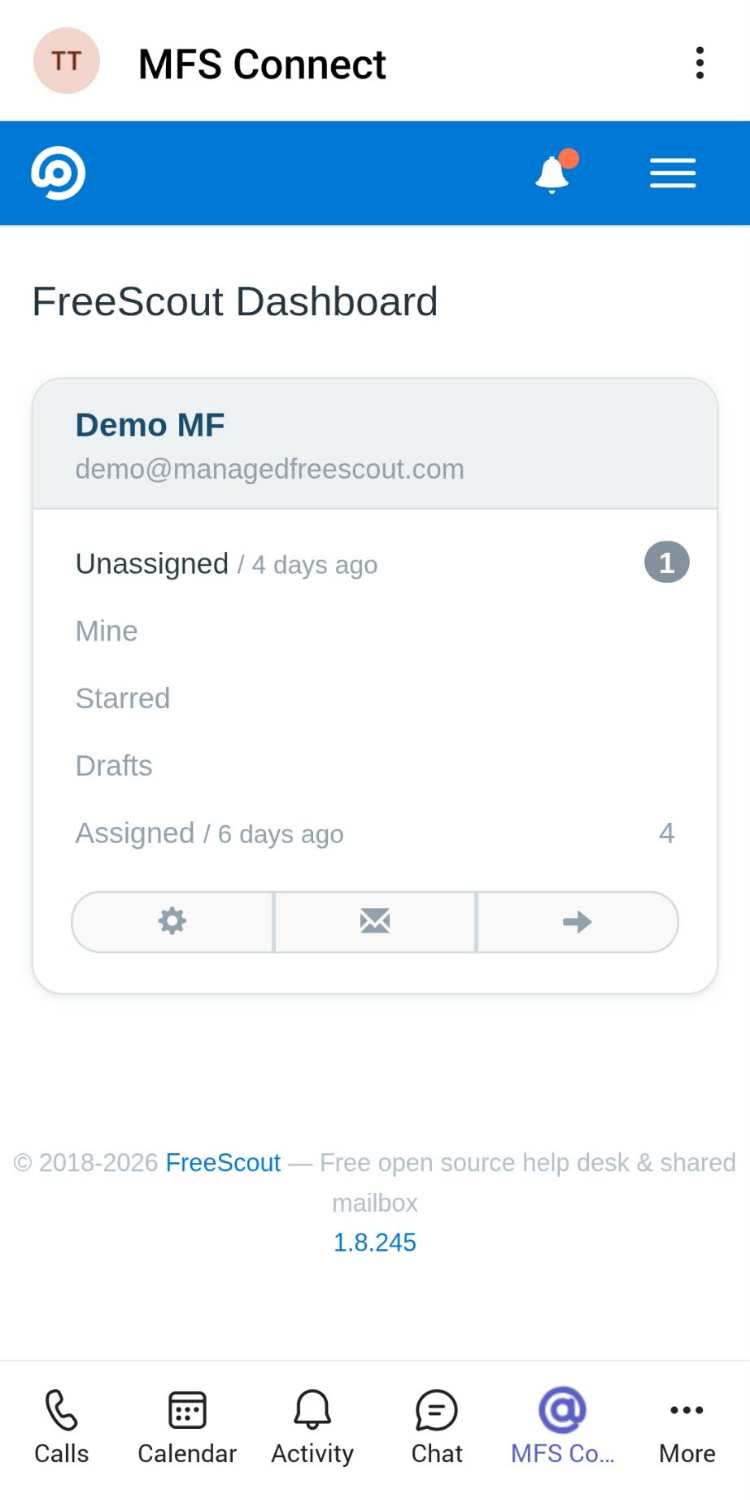
FreeScout works wherever Teams works: the Teams desktop app, Teams in the browser and the Teams mobile app. It also runs in Outlook and the Microsoft 365 app.
- ✓Teams desktop, web and mobile
- ✓Outlook and the Microsoft 365 app
- ✓Links to other websites and attachments open in your browser
Onboarding
New colleagues are ready on day one
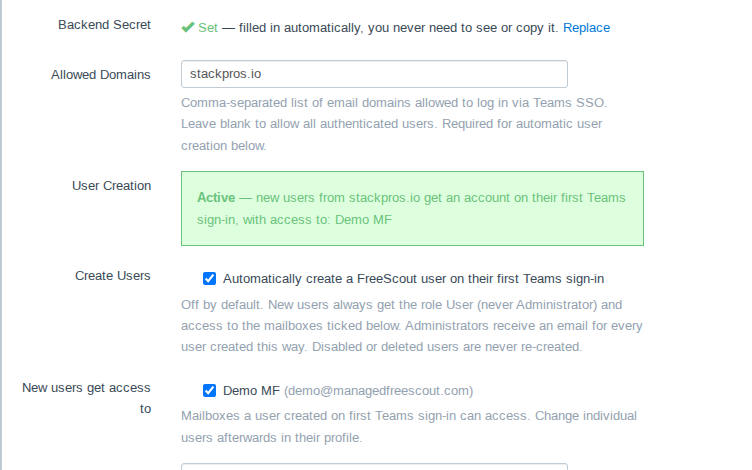
When a new colleague opens FreeScout in Teams for the first time, MFS Connect can create their FreeScout account automatically and give them access to the mailboxes you choose.
- ✓Accounts created on first sign-in (optional)
- ✓Only for the email domains you allow
- ✓Admins get a message for every new account
Up and running in four steps
A one-time setup. No Azure app registration and no domain verification on your side: Managed FreeScout runs the Microsoft app for all customers.
Choose a plan
Order below. Your licence key and the Teams app package are in your customer account.
Install the module in FreeScout
Once: unzip the MFS Connect module into FreeScout's Modules folder (FTP, SSH or your hosting panel), activate it under Manage → Modules and enter your licence key. Updates later come with one click.
Add the Teams app
Once: your Teams admin uploads the app in the Teams Admin Center and grants consent for two narrow permissions.
Connect and roll out
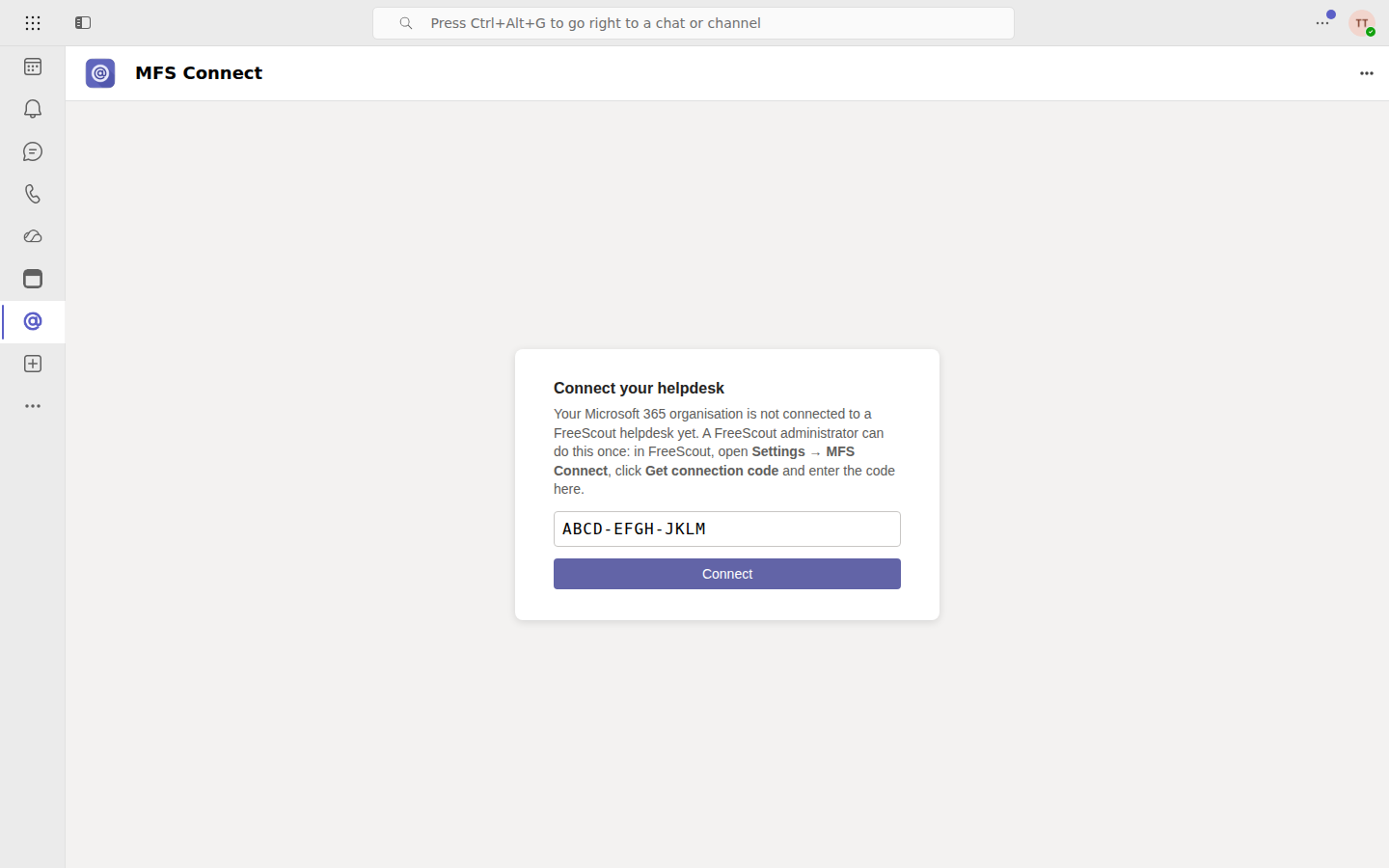
Enter the connection code from FreeScout in the Teams app, then make the app available to your agents.
One plan that grows with your team
Pay for the colleagues who use it. Monthly subscription, prices excl. VAT.
Grow as you go
€7 per month including 3 users, + €1.50 per additional user
€7.00
per month for the number of users below
- ✓Single sign-on and Teams notifications
- ✓Teams, Outlook and the Microsoft 365 app
- ✓Automatic accounts for new colleagues
- ✓Add or remove users at any time
1 user: €7.003 users: €7.007 users: €13.0010 users: €17.5025 users: €40.00
A user is a colleague who signs in to FreeScout through Teams. Requires FreeScout 1.8.101 or newer and Microsoft 365 with Teams.
Questions
Do our conversations leave our server?
No. FreeScout and all your conversations stay on your own server. Our service only takes care of the Microsoft 365 sign-in and of sending the Teams notifications.
Do we need to set anything up in Azure?
No app registration, no client IDs or secrets, no domain verification. A Teams admin uploads our Teams app in the Teams Admin Center once and grants consent for two narrow permissions: User.Read (to confirm who signs in) and sending Teams activity notifications. The Azure side is run by Managed FreeScout for all customers.
What counts as a user?
A colleague who signs in to FreeScout through Teams. Colleagues who only use FreeScout in the browser do not count.
What do we need?
FreeScout 1.8.101 or newer on https, admin access to FreeScout and to its server files (to install the module once, e.g. via FTP or your hosting panel), a Microsoft 365 account with Teams admin rights (to add the app once), and a web server that lets Teams show FreeScout (Apache works out of the box; on nginx you add one header).
Can we add or remove users later?
Yes, at any time, in your customer account. The link to it is in the email you receive after ordering.
- Adding users: the new number applies right away. The added users for the rest of the current billing period are charged pro rata with your next regular payment, so you never get a separate charge.
- Removing users: the new number applies from your next renewal date. Until then you keep your current number of users; there is no refund for the current period.
- The number of users can't go below the number included in your plan.