

Downloads
What's new in 1.4.2
- Editing a note gets the same editor buttons as writing one
- New switch Kanban card editor (only with the Kanban module): the same buttons in Kanban New Card and Edit Card
- Hover hints near the top of the page open below or beside their button instead of behind the fixed top menu
- Split view: a conversation that leaves the list after assign, close or delete no longer stays open on the right
- No fullscreen button in a conversation shown inside a pop-up window
Already installed? New versions appear in FreeScout under Manage → Modules with an Update button; no download needed. First installation: see Installation below.
On this page
- What MFS Essentials does
- Requirements
- Installation
- Licence
- Choose which features are on
- Fixed panels
- Split view
- Status filters
- Sortable and adjustable columns
- Editor extras
- Convert an email to an internal note
- Reactions on notes
- Emoji and symbols in the editor
- Code blocks that wrap
- Updating, removing and troubleshooting
- Version history
Need help?
What MFS Essentials does
MFS Essentials adds nine everyday upgrades to FreeScout, for every agent in your helpdesk. An admin can switch each one on or off. This manual covers version 1.4.2.
| Upgrade | What your team gets |
|---|---|
| Fixed panels | The menu, the folders and the ticket list header stay in place while you scroll. In a conversation the toolbar and the title stay at the top. |
| Split view | The ticket list on the left, the conversation on the right, like an email program. |
| Status filters | Active, Pending and Closed checkboxes above the ticket list, to show only what you are working on. |
| Sortable and adjustable columns | Sort the ticket list by Customer or Assigned To, and drag column borders to the width you like. |
| Editor extras | Sub-lists with Tab and Shift+Tab, strikethrough, alignment, undo and redo, a horizontal line and fullscreen in the Reply and Note editors, also when you edit a note. With the Kanban module, the same buttons in Kanban's card window. |
| Convert an email to a note | A forwarded internal email that landed in a conversation becomes an internal note, so the client never sees it. Undo with one click. |
| Reactions on notes | React to a colleague's internal note with 👍 ✅ 👀 🎉, like in Slack or Teams. Hover to see who reacted. |
| Emoji and symbols | A button in the Reply and Note editors inserts emoji, currency symbols, arrows and dashes. |
| Code blocks that wrap | Text formatted as Code wraps instead of stretching the page with a horizontal scrollbar. |
MFS Essentials is made by Managed FreeScout (StackPros B.V.). It runs entirely inside your own FreeScout; your conversations never leave your server.
Requirements
You need a self-hosted FreeScout, access to its files, and an MFS Essentials licence.
- FreeScout: version 1.4.0 is tested with FreeScout 1.8.248.
- File access: FTP, SFTP or your hosting panel's file manager, to place the module in FreeScout's
Modules/folder once. - Admin account in FreeScout, to activate the module and the licence.
- Licence: €9 per year (excl. VAT) for one FreeScout installation, all agents included. Buy it on managedfreescout.com/mfsessentials.
- Internet access from the server to our licence server, for the licence check. Only the licence key and your FreeScout's domain are sent.
Installation
Installing takes about five minutes: place the folder, activate the module, then activate your licence.
- Download
mfsessentials.zipfrom the latest release. - Extract it into your FreeScout installation's
Modules/folder, using FTP, SFTP or your hosting panel's file manager. The files must end up inModules/MFSEssentials/, not in a nestedModules/MFSEssentials/MFSEssentials/. - In FreeScout, go to Manage → Modules, find MFS Essentials and click Activate.
- Activate your licence, as described in the next section. Until then, all features stay off.
FreeScout's Install button on the Modules page only works for modules from the official FreeScout store. MFS Essentials is installed by extracting the zip, as above.
Licence
All features switch on the moment your licence is active, and switch off when it is not. An admin can switch single features off; see Choose which features are on, below.
Activate
- Find your licence key in the confirmation email you received after your purchase. That email also explains how to manage your subscription and licence keys.
- In FreeScout, go to Manage → Settings → MFS Essentials.
- Paste the key and click Activate licence.
The settings page then shows the status, the date your subscription is paid until, and when the licence was last checked.
How the check works
- FreeScout re-checks the licence every 6 hours. Only the key and your FreeScout's domain are sent.
- If the licence server cannot be reached, nothing changes. After 14 days without a successful check, the features switch off until the next successful check.
- When your subscription ends or is not renewed, the features switch off. Renew as described in your confirmation email and they come back on the next check.
Moving to another FreeScout installation
One licence works on one installation. Click Deactivate on the old installation first, then activate the key on the new one.
Choose which features are on
Every feature has its own switch on Manage → Settings → MFS Essentials, under Features. All switches are on after installing or updating.
- Go to Manage → Settings → MFS Essentials.
- Under Features, switch off what your team does not want.
- Click Save.

Good to know
- The switches apply to all agents. Only admins see the settings page.
- Within a feature, each agent's own choices are remembered for that agent only: split view on or off, column widths and which statuses are shown. They are stored in FreeScout, so they follow the agent to every computer.
- Code blocks that wrap has no switch: it is always on with an active licence.
Fixed panels
The top menu, the folder list and the header of the ticket list stay in place while you scroll. In a conversation, the toolbar (reply, note, assign, status) and the title stay at the top, and the customer panel on the right stays in view. Long conversations no longer mean scrolling back up to reply.
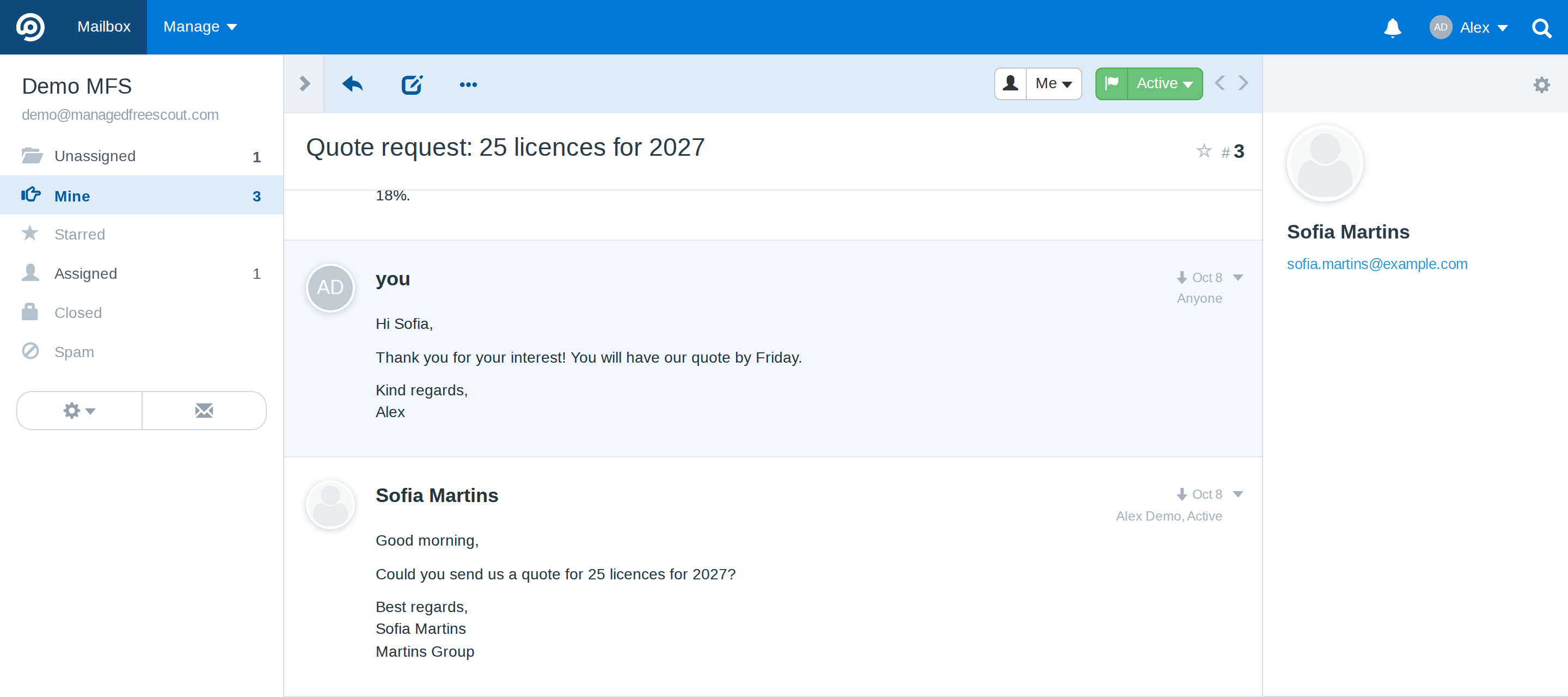
Fixed panels work on screens at least 992 pixels wide. On phones and narrow windows FreeScout scrolls as usual.
Split view
Split view shows the ticket list on the left and the open conversation on the right, so you can work through a folder without going back and forth.
- Open a folder, for example Mine.
- Click Split view at the top right of the ticket list.
- Click a conversation. It opens on the right; the list stays on the left.

Good to know
- Reply, add notes, assign and change the status in the right pane as usual. The list refreshes afterwards.
- Drag the divider between the two halves to make the list wider or narrower.
- Ctrl+click (Cmd+click on a Mac) still opens a conversation in a new browser tab.
- Click Split view again to switch it off. Your choice and the divider position are remembered for you.
- The Split view button appears on screens at least 1200 pixels wide.
Status filters
The checkboxes Active, Pending and Closed above the ticket list show or hide conversations with that status. Untick Pending to see only what needs an answer now.

Good to know
- Your choice is remembered for you and applies to every folder, until you change it.
- At least one status always stays ticked.
- The filters do not appear in folders that hold one kind of conversation anyway: Closed, Spam, Deleted and Drafts.
- The counts in the folder list are FreeScout's own and do not change with the filters.
Sortable and adjustable columns
FreeScout lets you sort the ticket list by Conversation, Number and date. MFS Essentials adds sorting by Customer and Assigned To, and lets you change the width of the columns.

- Sort: click a column header with ⇅. The first click sorts A to Z, the second Z to A. Conversations without a name or without an agent come last.
- Width: move the mouse over the header row, then drag the border between two columns. Double-click a border to go back to the normal width.
- Your column widths are remembered for you, on every computer.
- The Assigned To column only appears in folders where FreeScout shows it, not in Mine.
Editor extras
The Reply and Note editors, and the editor you get when you edit a note, get the buttons that FreeScout leaves out, and lists that can go a level deeper.

| Button or key | What it does |
|---|---|
| Tab / Shift+Tab | In a bulleted or numbered list: move the item one level in or out, to make a sub-list. |
| Indent / Outdent | The same as Tab and Shift+Tab; outside a list they indent the paragraph. |
| Strikethrough | Cross out text, for example a price that changed. |
| Align | Left, centre or right. |
| Undo / Redo | Step back or forward through your changes. |
| Horizontal line | A line between two parts of your message. |
| Fullscreen | Write a long reply in the whole window. Click again to go back. |
Sub-lists are built the way Gmail and Google Docs build them, so they look right in your client's email program.
Kanban card editor. If your helpdesk uses FreeScout's Kanban module, a separate switch, Kanban card editor, gives Kanban's New Card and Edit Card window the same buttons, without fullscreen. Add attachments to the card's conversation after you save the card. The switch only appears on the settings page while the Kanban module is active.
Convert an email to an internal note
Turn an email that the client must not see into an internal note: its text, attachments and place in the conversation stay, but the client no longer sees it anywhere.
Typical case: a colleague forwards an internal email (a cost price, a discussion) into the conversation. Without converting, that email shows up for the client in the quoted history of later replies and in the customer portal.
Convert
- Open the conversation and click the arrow at the top right of the email.
- Choose Convert to note.
- Confirm. The page reloads and the email is now a yellow internal note.


A banner on the note says who converted it, when, and who originally sent it.

Good to know
- Every agent with access to the mailbox can convert. Admins always can.
- Your own replies can be converted too, but they were already sent: converting hides them from later replies and the portal, it does not recall the email.
- Converting the first message of a conversation is allowed; the confirmation warns you.
- You become the note's author, so you can delete it like any of your own notes.
- Reports that count customer messages count one fewer for a converted email.
Undo
Open the note's menu and choose Convert back to email. The original type, author and sender are restored.

Reactions on notes
React to a colleague's internal note with one click instead of writing "OK, thanks". Reactions only appear on internal notes, never on emails to or from the client.
- Under every internal note you see four reactions: 👍 ✅ 👀 🎉.
- Click one to add your reaction; click it again to remove it.
- Hover over a reaction to see which colleagues reacted.


Emoji and symbols in the editor
The smiley button in the toolbar of the Reply and Note editors inserts emoji and special characters where your cursor is. It works the same in a note and in a reply to the client.
- Click in the text where the character should go.
- Click the smiley button in the editor's toolbar.
- Pick a character on the Emoji tab, or switch to Symbols for currency signs (€ £ $), arrows (→) and typographic dashes and quotes.


Code blocks that wrap
Text formatted as Code now wraps onto the next line, instead of running off the edge with a horizontal scrollbar. Nothing to switch on: it works as soon as the licence is active, in the editor and in the conversation.
To format text as code: select it, open the editor's style menu and choose Code. Useful for log lines, error messages and settings you paste into a note.
Without MFS Essentials a long line runs off the edge:

With MFS Essentials the same line wraps:
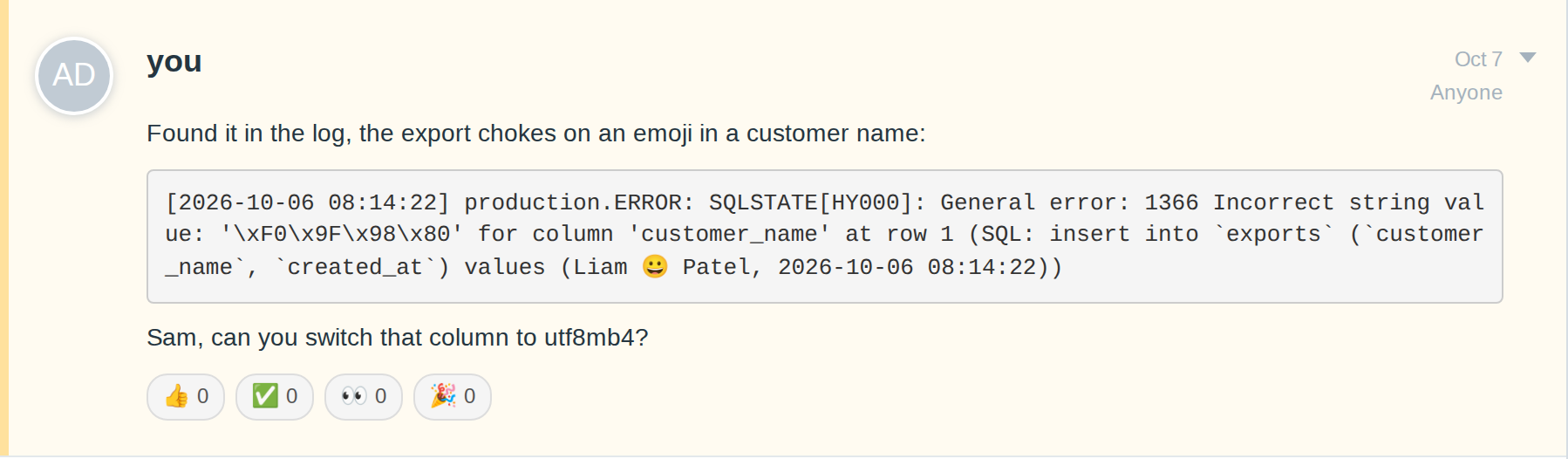
This fixes a known FreeScout issue (#5167).
Updating, removing and troubleshooting
Updating
When a new version is out, Manage → Modules shows "Update available" next to MFS Essentials. Click Update Now; no new upload needed. If the page looks unchanged afterwards, reload it once with Ctrl+F5 (Cmd+Shift+R on a Mac).
Removing
- Go to Manage → Settings → MFS Essentials and click Deactivate, so the licence can be used elsewhere.
- Go to Manage → Modules and deactivate MFS Essentials, then delete it.
Troubleshooting
| What you see | What to do |
|---|---|
| No reactions, no smiley button, no Convert to note | Check the licence status on Manage → Settings → MFS Essentials. The features only work with an active licence, and each one only when its switch under Features is on. |
| No Split view button | Make the browser window wider: the button appears from 1200 pixels. Also check that Split view is switched on under Features. |
| The menu and toolbar scroll away | Fixed panels work from 992 pixels wide. On a phone or a narrow window FreeScout scrolls as usual. |
| A conversation is missing from the list | Check the Active, Pending and Closed checkboxes above the list: its status may be unticked. |
| Status "in use elsewhere" | The key is active on another FreeScout installation. Deactivate it there first. |
| Status "expired" | Renew your subscription as described in your confirmation email; the features return at the next check (within 6 hours), or click Activate again. |
| Status "not checked for 14 days" | Your server cannot reach our licence server. Ask your host to allow outgoing HTTPS connections from FreeScout; we can give you the exact address if they need it. |
| No Convert to note in a menu | The option exists on client emails and on your own replies, not on notes or activity lines. A converted note shows Convert back to email instead. |
Still stuck? Contact us via managedfreescout.com/contact-us.
Version history
| Version | Released | What changed |
|---|---|---|
| 1.4.2 | 23 Oct 2026 | Editing a note gets the same editor buttons as writing one; new switch Kanban card editor (only with the Kanban module): the same buttons in Kanban's New Card and Edit Card window; hover hints near the top of the page open below or beside their button instead of behind the top menu; in split view a conversation that leaves the list after you assign, close or delete it there no longer stays open on the right |
| 1.4.1 | 19 Oct 2026 | With a reply or note open, the Assignee and Status menus open on top of the editor; in split view their hover hints show below the buttons |
| 1.4.0 | 19 Oct 2026 | Fixed panels, split view, status filters, sortable and adjustable columns, editor extras; a switch per feature; the smiley button now sits with the other editor buttons |
| 1.3.2 | 9 Oct 2026 | Printouts show no reaction buttons under notes; the module is now called MFS Essentials |
| 1.3.1 | 9 Oct 2026 | The licence is checked again every 6 hours, as intended |
| 1.3.0 | 8 Oct 2026 | Licence: €9 per year; features need an active licence |
| 1.2.0 | 7 Oct 2026 | Convert an email to an internal note, and back |
| 1.1.2 | 29 Aug 2026 | Maintenance release |
| 1.1.1 | 20 Jul 2026 | First release: emoji and symbols, code blocks that wrap, reactions on notes |