

Downloads
Teams app package: upload it in the Teams admin center (Manage apps), or sideload it in Teams. The manual below describes the steps.
What's new in 1.9.6
Inside Microsoft Teams, Outlook and the Microsoft 365 app, FreeScout's Log out item is now hidden: sign-in there is managed by Microsoft, so an in-app log out cannot end the session (and showed a "page expired" notice). In a normal browser tab nothing changes.
Already installed? New versions appear in FreeScout under Manage → Modules with an Update button; no download needed. First installation: see Installation below.
Overview & what you'll need
MFS Connect puts FreeScout inside Microsoft Teams as a native tab. Agents open it like any other Teams app and sign in automatically using the Microsoft 365 identity they already have open — no separate FreeScout password, ever.
This works without any Azure Portal involvement on your side. Managed FreeScout owns a single, multi-tenant Azure app registration that serves every customer — your Microsoft 365 tenant is matched to your FreeScout install once, with a one-time connection code. Your Teams admin never registers an app, verifies a domain, or opens Entra ID.
Before you start, you'll need:
- A self-hosted FreeScout installation on https://, with Manage → Modules access
- FreeScout 1.8.101 or newer. On Apache or LiteSpeed the module sets the header that lets Teams and Outlook show FreeScout; on nginx your admin adds it once:
Content-Security-Policy: frame-ancestors 'self' https://teams.microsoft.com https://*.teams.microsoft.com https://*.skype.com https://*.cloud.microsoft https://*.microsoft365.com https://*.office.com https://outlook.office.com https://outlook.office365.com https://outlook-sdf.office.com https://outlook-sdf.office365.com - An active MFS Connect license (Part 1 covers ordering one)
- Someone with the Teams Administrator or Global Administrator role in your Microsoft 365 tenant — needed for Parts 2 and 4
- About 15–20 minutes, most of it waiting on Microsoft's own propagation delays rather than active work
What this guide will not ask you to do: open portal.azure.com, register an app, or verify a domain in Entra ID. If a step ever seems to require that, stop and contact support@managedfreescout.com — something's gone off-script.
Part 1 — Order the license & configure the module
- Order an MFS Connect license at managedfreescout.com. Your License Key is in the confirmation email you receive after ordering. That email also has the link to your customer account, where you manage your subscription, number of users and license keys. The key is the only thing you will ever paste.
- Download the module zip and unzip it into your FreeScout installation's Modules/ folder (with FTP, SSH or your hosting control panel's file manager), so the files land in Modules/MSTeamsFS/. Then go to Manage → Modules and click Activate. FreeScout's Modules page has no upload button for modules from outside its own module store, so this first installation is done on the server; later updates appear on Manage → Modules with an Update now button.
- Nothing to do for the sign-in cookie: since version 1.9.4, MFS Connect keeps FreeScout's sign-in working inside Teams by itself (on https it sets FreeScout's session cookie to SameSite=None and Secure, which browsers require inside Teams). Only if Settings → MFS Connect shows a yellow warning, for example because FreeScout does not run on https, add
SESSION_SECURE_COOKIE=trueandSESSION_SAME_SITE=noneto FreeScout's.envfile and clear the cache under Manage → System → Tools → Clear Cache. - Go to Settings → MFS Connect in FreeScout and fill in these settings (the last two are optional):
- License Key — paste it and click Activate License. This also registers your FreeScout with Managed FreeScout: the Backend Secret field then shows Set ✓ by itself. You never need to see, copy or store that secret. Once active, this screen also shows a live "Seats: X of Y used" counter.
- Allowed Domains (optional) — a comma-separated list of email domains permitted to sign in via Teams SSO (e.g.
yourcompany.nl). Leave it blank to allow anyone who successfully authenticates through your Microsoft 365 tenant; only worth setting if your tenant includes guest or external accounts you don't want signing into FreeScout this way. - User Creation (optional) — tick Create Users to create a FreeScout account automatically the first time someone signs in through Teams, and choose which mailboxes new users get. New users always get the role User, never Admin. This needs Allowed Domains to be filled in. Without it, every agent needs an existing FreeScout account with the same email address as their Microsoft account.
- That's it for this part — there's no Azure ID, tenant ID, client ID or secret to enter anywhere. A Microsoft 365 connection panel now says "Step 2 of 2": you link your Microsoft 365 organisation once, in Part 3, after the Teams app is added.

Part 2 — Add the Teams app to your organization
MFS Connect isn't yet listed in the Microsoft Teams app store (submission is in progress), so for now your Teams admin sideloads it directly — a few clicks, no store review or waiting involved.
Download the Teams app package, MFS Connect (a small .zip), from the Downloads block of the MFS Connect help center page, or directly: mfs-connect-teams-app.zip. If you can't get it, ask support@managedfreescout.com.
Go to the Teams Admin Center → Teams apps → Manage apps.
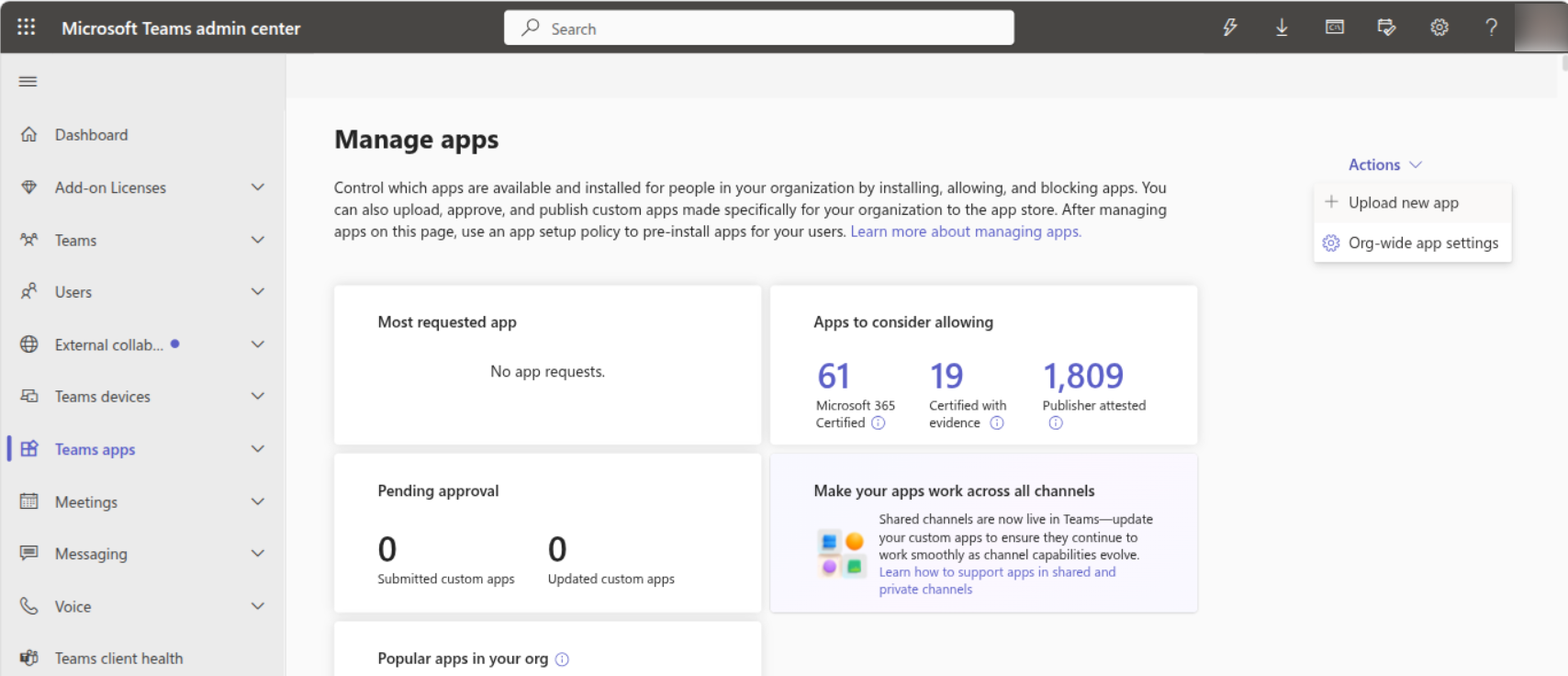
Teams Admin Center, Manage apps, with the Actions menu open Click Actions → Upload new app, and select the zip.

Actions, Upload new app Open the app's entry → Permissions tab and review the two requests: User.Read (delegated — lets Teams vouch for the agent's identity at sign-in) and TeamsActivity.Send.User (an application-level, resource-specific permission — lets MFS Connect post the toast/bell/Activity Feed notification when a ticket is assigned, replied to, or gets a note). Neither grants mailbox, calendar, or file access.

The Permissions tab of MFS Connect: User.Read and TeamsActivity.Send.User Click Grant admin consent to approve both. This is the one and only "permissions" moment in this whole setup — two narrowly-scoped permissions, not an Azure app registration.
Still not required: a domain to verify, a client ID to copy anywhere, or an Entra ID app registration screen. Managed FreeScout handles all of that centrally, once, for every customer.
Part 3 — Connect your Microsoft 365 organisation (once)
This links your Microsoft 365 organisation to your FreeScout. It takes a minute and is never needed again.
- In FreeScout, go to Settings → MFS Connect and click Get connection code in the Microsoft 365 connection panel. The code looks like
ABCD-EFGH-JKLMand works once, within 24 hours. - In Microsoft Teams, open the MFS Connect app (you, right after Part 2, or any colleague). The first time, it shows Connect your helpdesk: enter the code and click Connect.
- Teams signs you straight in. Back in FreeScout the panel now says Connected, and everyone in your organisation can sign in from Teams.

Share the code only with colleagues in your own organisation: whoever enters it links their Microsoft 365 organisation to your FreeScout. Personal Microsoft accounts (such as outlook.com) can't connect a helpdesk.
Part 4 — Roll it out to your agents
MFS Connect needs to be installed in personal scope for each agent — not just pinned as a channel tab — for sign-in and Teams notifications (toast, bell, Activity Feed) to work fully. Setup policies handle this for everyone at once, rather than each agent adding the app themselves.
Installation and pinning are handled in two separate places in the current Teams Admin Center — an older version combined them both under Setup policies, which is no longer how it works.
Confirm the install target first. Go to Teams apps → Manage apps, search for MFS Connect, open it, and check the About tab. It should show Installed for: Everyone, Available to: Everyone (org-wide default), and — this is the important one — Scope: Personal. Personal scope is what's required both for sign-in and for Activity Feed notifications to work. If it already shows this (it usually will, right after sideloading), there's nothing further to do here.
Want it limited to just your support team instead of the whole org? Use the Users and groups tab on that same app page — that's where install targeting actually lives now, not Setup policies.
Pinning is separate, and purely cosmetic. Go to Teams apps → Setup policies, open your Global policy (or a custom one scoped to your support team), and add MFS Connect under Pinned apps. This only controls whether the app shows by default in every agent's app bar without them searching for it first — it has no effect on whether sign-in or notifications actually work. Skip it if you're fine with agents finding and pinning it themselves.

Setup policies, Global: Pinned apps
Give it time. Microsoft's own policy propagation can take anywhere from a few minutes to a few hours to reach every agent, and noticeably longer to reach mobile Teams clients. That delay is normal and outside anyone's control on either side — no need to re-check settings if the app doesn't appear right away.
Good to know
- Also in Outlook and the Microsoft 365 app. Once the app is added in Teams, agents also find FreeScout under Apps in Outlook (web and desktop) and the Microsoft 365 app, with the same automatic sign-in.
- Seats. Each person who signs in through Teams takes one seat of your license, and keeps it until it is freed. When all seats are taken, new people see "No more license seats are available". To free the seat of a colleague who no longer uses MFS Connect, go to your customer account (the link is in the email you receive after ordering), open Subscriptions → Show users and click Free. If that colleague signs in again later, they take a seat again when one is free.
- Adding or removing users. Change the number of users in your customer account (the link is in the email you receive after ordering) under Subscriptions → Seats → Update. You see the new price before you confirm. More users apply right away; the added users for the rest of the current billing period are charged pro rata with your next regular payment. Fewer users apply from your next renewal date, with no refund for the current period. The number can't go below the number of users included in your plan.
- License checks. FreeScout re-checks your license every 6 hours through the Managed FreeScout hub. If the hub can't be reached, the last known status stays valid for up to 14 days, so a short outage never locks your agents out.
- One identity per account. After the first Teams sign-in, a FreeScout account is tied to that Microsoft account. Disabled FreeScout users are always refused.
- No Log out inside Teams. Inside Teams, Outlook and the Microsoft 365 app, sign-in is handled by Microsoft, so FreeScout's Log out item is hidden there (since 1.9.6). Agents sign out of Teams itself. In a normal browser, FreeScout's Log out works as usual.
- One license, one FreeScout. Activating a license ties it to that FreeScout address. Moving to a new address, or starting over after the Backend Secret was lost, goes through support.
- Upgrading from 1.6.x. Since 1.7.0 the module needs no invAIse settings in FreeScout's
.env: anyMSTEAMSFS_INVAISE_*lines can be removed. - Upgrading from 1.7.x. Nothing to do: an existing install keeps its Backend Secret and its connection, and Teams keeps working as before.
Verifying it works, and troubleshooting
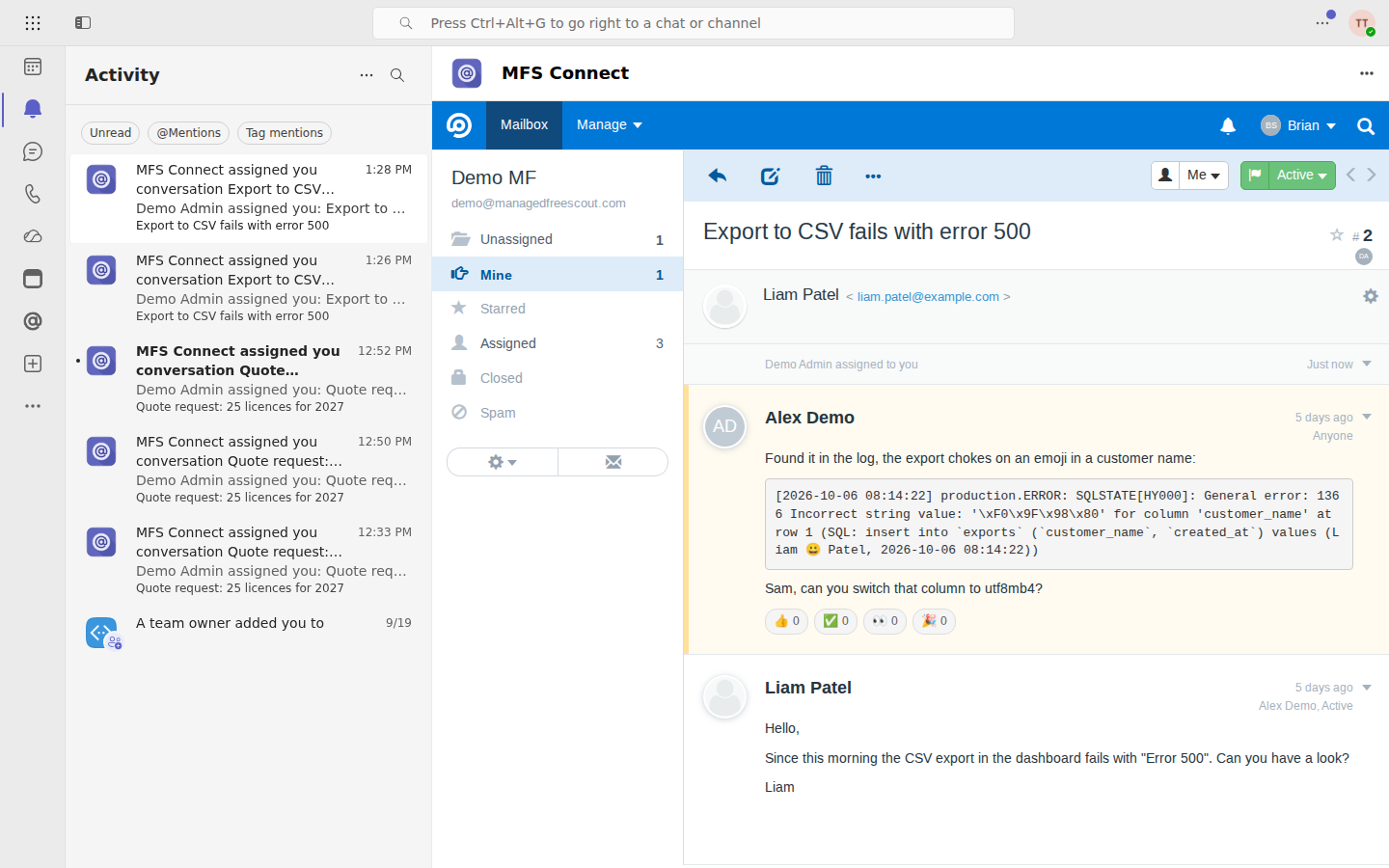
For each agent: open Teams (desktop, web, or mobile) → click the FreeScout tab → land straight on your mailbox, no password prompt. That's the whole experience. Confirmed working today on Teams desktop, web, and mobile.

Notifications. When a conversation is assigned to an agent, or a customer or colleague replies to it, MFS Connect posts it to that agent's Teams activity feed, with a pop-up. Clicking the notification opens the conversation inside MFS Connect.
If sign-in doesn't work:
- Teams shows "Connect your helpdesk" — your organisation isn't connected yet: do Part 3. "This code is not valid or has expired" means get a new code in FreeScout.
- Activate License says the key or address is already registered — a license works for one FreeScout address. To move to a new address or reinstall from scratch, contact support.
- Teams shows the normal FreeScout login screen — the browser dropped FreeScout's session cookie inside Teams. Update MFS Connect to version 1.9.4 or newer, which fixes this by itself on https, then close and reopen the Teams tab. Still happening? Settings → MFS Connect then shows a yellow warning that says what to change (see Part 1, step 3).
- Only in a private (InPrivate/Incognito) window: the login screen or "refused to connect" — private windows, and browsers set to block third-party cookies, stop FreeScout's sign-in inside Teams on the web. Use the Teams desktop or mobile app or a normal browser window, or allow cookies for your FreeScout address in the browser's settings.
- "Access denied" or a blank tab — most likely no FreeScout account matches that Microsoft account (or it is linked to a different one), or your license/seat count is exhausted. MFS Connect is fail-closed by design: if it can't verify your license or the signed handoff token, it denies access rather than guessing.
- "Your organization's MFS Connect license is not active" — the license is suspended, expired or not linked to your install. Renew it in your customer account (the link is in the email you receive after ordering), or contact support, then reload the Teams tab.
- Works on desktop but not on web (browser) — ask your Teams admin to confirm nothing on your network blocks Microsoft's
*.cloud.microsoftdomain. This is a known Teams-web-specific requirement, unrelated to your FreeScout install. - Doesn't show up on mobile yet — see the propagation note in Part 4; mobile is consistently the slowest surface to catch up.
- Seat limit reached — current usage shows on Settings → MFS Connect in FreeScout as "X of Y seats used." Free up a seat (see Seats under Good to know), or add users in your customer account (see Adding or removing users).
Anything not covered here: support@managedfreescout.com.